Salesforce Fundamentals: Part 7 - Sharing Data

With a solid foundation in data management now in place, you’re ready to explore one of the most important pillars of the Salesforce platform: how access to that data is controlled. Record-level security determines which records a user can see and edit after their object and field permissions have been applied. It underpins every secure, scalable Salesforce implementation.
In practice, a sharing model that is too open or too restrictive causes two very different problems, and both are costly. An overly restrictive model generates constant support requests from users who can’t see what they need. An overly permissive model creates compliance exposure and erodes user trust in the platform. I have seen both happen in production orgs, and in most cases the root cause was an OWD that was set hastily and never reviewed as the org grew.
This guide works through organisation-wide defaults (labelled Organization-Wide Defaults in Setup), the role hierarchy, sharing rules, manual sharing, Apex sharing, and restriction rules. It then shows you how to test the model, diagnose access problems, and combine the mechanisms in realistic designs.
Think of this as learning the “rules of visibility” inside Salesforce.
🛡️ How the Record-Sharing Model Determines Access
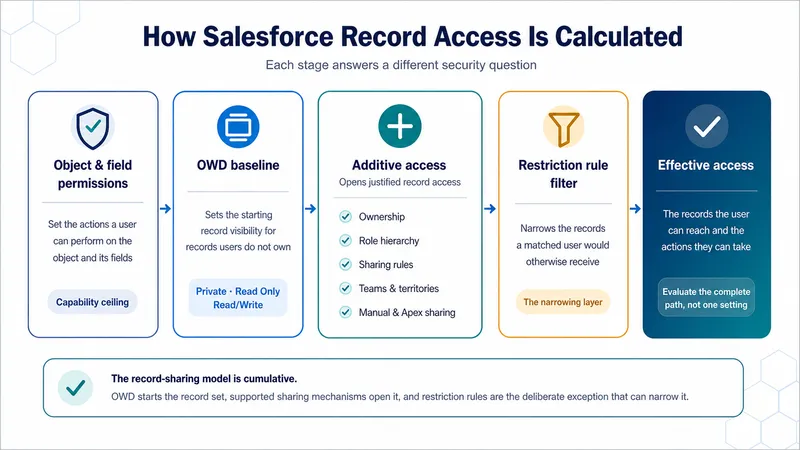
Section titled “🛡️ How the Record-Sharing Model Determines Access”Record access is not controlled by one setting. A user’s effective access is the result of several security layers working together: permissions determine what the user can do with an object and its fields, while the sharing model determines which records are within reach. Salesforce’s record-access guidance brings these mechanisms together, but the easiest way to design or troubleshoot them is to work through the questions in a consistent order.
Page layouts and record types still matter to the user experience, but they are not security controls. Hiding a field from a layout does not secure it, and making a record type available does not grant access to its records.
🧭 Work through access in this order
Section titled “🧭 Work through access in this order”-
Can the user access the object and fields? The profile and permission sets must provide the required object permission, such as Read or Edit, and field-level security must expose the fields involved. If the user cannot read the object, record sharing cannot make one of its records visible.
-
What access does OWD provide? Organization-Wide Defaults establish the starting point for users who do not own the record. A Private baseline starts closed; Public Read Only or Public Read/Write starts with broader access.
-
Does another mechanism open the record? Ownership, the role hierarchy, sharing rules, teams, territories, manual sharing, and Apex sharing can add access. Broad permissions such as
View All RecordsorView All Datacan bypass the normal record-sharing path. -
Does a restriction rule filter the result? For supported objects and users, a restriction rule can remove records from the set the user would otherwise receive. It filters an existing access result rather than replacing OWD or the sharing model.
-
Does the requested action fit both layers? The user needs sufficient record access and the corresponding object and field permissions. Edit access to a record is not useful when the user has only Read permission on the object.
Most sharing mechanisms are additive. When several mechanisms apply, a weaker grant does not reduce stronger access received elsewhere. For example, a Read Only sharing rule does not downgrade a user who already has Edit access through ownership or the role hierarchy.
🧪 Follow one record through the model
Section titled “🧪 Follow one record through the model”Imagine a custom Project__c object with OWD set to Private:
- Mia owns the Project record, so ownership gives her record access, bounded by her object and field permissions.
- Mia’s manager sits above her in the role hierarchy, so the manager can inherit access when Grant Access Using Hierarchies is enabled.
- The Delivery Assurance group sits in another branch, so the hierarchy gives it nothing. A criteria-based sharing rule grants the group Read Only access when
Risk_Level__c = 'High'. - A contractor needs one temporary exception, so the owner grants a manual share to that Project rather than opening every high-risk Project.
- Another user has Read permission on
Project__cbut receives no record access, so that user still cannot see Mia’s Project.
This is the central mental model: permissions set the ceiling, OWD sets the baseline, sharing mechanisms add justified access, and restriction rules can filter the resulting record set. When access is wrong, ask which layer should have granted or blocked it instead of changing the first sharing setting you find.
The diagram below turns that sequence into one access path you can use when designing or troubleshooting a sharing model.
🧰 Choose the mechanism that matches the requirement
Section titled “🧰 Choose the mechanism that matches the requirement”Once the access path is clear, use the requirement to choose the simplest suitable starting point:
| Requirement | Start with |
|---|---|
| Set the default visibility for internal and external users | Organization-Wide Defaults |
| Give managers access to records owned by or shared with people below them | Role hierarchy |
| Open predictable access for a group of records and users | Ownership- or criteria-based sharing rule |
| Grant an exceptional share on one record | Manual sharing or a team, if the object supports it |
| Apply business-driven sharing that declarative rules cannot express | Apex sharing, with explicit ownership and tests |
| Filter records from users who would otherwise receive access | Restriction rules, after checking supported objects, editions, and limits |
🗄️ Organization-Wide Defaults (OWD)
Section titled “🗄️ Organization-Wide Defaults (OWD)”Organization-Wide Defaults set the baseline level of access users have to records they do not own. Set that baseline as restrictively as the business allows, then use the other sharing mechanisms to open the access people genuinely need.
OWD access levels
Section titled “OWD access levels”Available values vary by object and by whether you are setting internal or external access. Salesforce’s OWD access-level reference lists the object-specific options, but these are the levels you will encounter most often:
- Private: Users do not automatically receive access to records owned by other users. The record owner and users above the owner in the role hierarchy can normally view, edit, and report on the record; everyone else needs access through another sharing mechanism or a broad permission.
- Public Read Only: Users with Read permission on the object can view and report on every record. Editing remains limited to the owner, users above the owner in the role hierarchy, and users who receive stronger access through another mechanism.
- Public Read/Write: Users with the corresponding object permissions can view, edit, and report on every record. This does not automatically let every user transfer ownership, delete records, or change an individual record’s sharing.
- Controlled by Parent: A child record inherits its record access from its parent. A user can view, edit, or delete the child only when they can perform the same action on the associated parent record.
- Public Read/Write/Transfer: For Cases and Leads, users with the corresponding object permissions can view, edit, report on, and transfer every record. Deleting a record or changing its sharing still requires separate access.
- Public Full Access: For Campaigns, users with the corresponding object permissions can view, edit, transfer, delete, and report on every record.
Set the OWD baseline
Section titled “Set the OWD baseline”Configure Organization-Wide Defaults from Setup → Sharing Settings. Treat this as an architecture decision, not a quick setup task, because changing the baseline can affect a large number of users and records.
-
Open Sharing Settings and select Edit in the Organization-Wide Defaults section.
-
Set Default Internal Access for each object based on the broadest access every internal user should receive.
-
Set Default External Access where the org has Experience Cloud or other external users. External access should reflect what those users genuinely need, not simply mirror the internal setting.
-
Review Grant Access Using Hierarchies for custom objects and decide whether managers should inherit access through the role hierarchy.
-
Save and monitor the recalculation before validating the result with representative users and records.
Understanding “Grant Access Using Hierarchies”
Section titled “Understanding “Grant Access Using Hierarchies””For a custom object whose OWD is not Controlled by Parent, this setting controls whether the role hierarchy can grant access to its records. For standard objects, the setting cannot be changed and hierarchical access is enabled for most, but not all, objects.
- Enabled: Access can pass upwards from users in lower roles.
- Disabled: The hierarchy does not open access for that custom object. Ownership, broad permissions, and configured shares can still grant it.
🪜 Role Hierarchy
Section titled “🪜 Role Hierarchy”The role hierarchy is Salesforce’s built-in structure for passing record access upwards. It uses the role assigned to each User record, not the user’s profile, permission sets, Manager field, or job title. It may resemble your organisation chart, but its purpose is to model who needs access to whose data.
When hierarchical access applies, a user in a higher role can inherit access to records owned by or shared with users in roles beneath them. The user still needs the corresponding object and field permissions; the hierarchy cannot turn object-level Read permission into Edit permission.
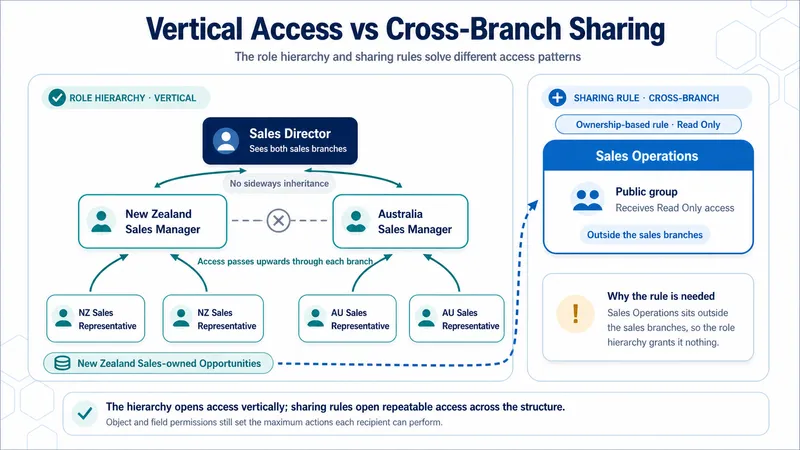
For example, if Sales Manager sits above Sales Representative, the manager can inherit access to a representative’s Opportunities. Another representative in the same role does not inherit that access, and neither does a manager in a separate branch.
How the hierarchy changes the OWD result
Section titled “How the hierarchy changes the OWD result”- Private: The hierarchy can give users above the owner access to records they could not otherwise see.
- Public Read Only: Everyone already has Read access, but the hierarchy can give users above the owner Edit access when their object permissions allow it.
- Public Read/Write: The hierarchy adds no ordinary Read or Edit access because the OWD already provides both to every user with the required object permissions.
Best practices for role design
Section titled “Best practices for role design”- Design around access, not titles: Start with the organisation chart, then combine job titles whose users need the same record visibility.
- Keep every role purposeful: Create a role only when it supports a current access, sharing, forecasting, or reporting requirement. A user does not need a role simply because they have a job title.
- Keep the hierarchy as simple as the requirement allows: Unnecessary roles and branches increase maintenance and can make sharing recalculations more expensive.
- Review high-volume ownership early: If one user will own more than 10,000 records, follow Salesforce’s ownership-skew guidance before assigning that user a role.
- Document the intended access: Record why each role exists, who belongs in it, and which data should pass upwards so later changes do not depend on institutional memory.
🧬 Sharing Rules
Section titled “🧬 Sharing Rules”A sharing rule is an automatic, maintained exception to OWD. Use one when a predictable group of users needs access to a predictable set of records and the role hierarchy does not already provide it, such as giving Sales Operations Read Only access to every Account owned by a regional sales team.
Sharing rules only open access. They cannot hide records or reduce access received through OWD, the role hierarchy, another sharing rule, or a broad permission. When several mechanisms apply, the user receives the most permissive effective access that their object and field permissions allow.
Salesforce applies a rule to existing and future records that match its definition. It also recalculates access when relevant ownership, criteria, or group membership changes. That makes a rule more durable than manual sharing, but a broad record set or incorrectly maintained recipient group can expose far more data than intended.
Choose the rule type that matches the requirement
Section titled “Choose the rule type that matches the requirement”- Ownership-based sharing rule: Selects records according to who owns them, using a supported role, territory, or group. Use this when access follows an organisational boundary, such as sharing Opportunities owned by the New Zealand Sales role with the Sales Operations public group.
- Criteria-based sharing rule: Selects records according to field values, regardless of who owns them. Use this when the data drives access, such as sharing Accounts where
Service_Region__c = 'New Zealand'with the New Zealand Service public group.
Salesforce also supports specialised guest user sharing rules. These grant Read Only access to matching records for unauthenticated site visitors, so treat them as a separate security design rather than an ordinary collaboration rule.
Define the rule in three parts
Section titled “Define the rule in three parts”- Source records: Identify either the ownership grouping or the field criteria that determines which records qualify.
- Recipients: Choose a supported public group, role, role and subordinates, or territory grouping. Sharing rules are designed for repeatable group access; use manual sharing or a team for a genuine one-record exception.
- Access level: Grant the least access that meets the requirement, normally Read Only or Read/Write. The rule cannot override object or field permissions: a user with only Read permission on the object cannot edit the record, and a read-only field remains read-only. For standard objects that expose related-record access settings, review and test each setting shown in the rule builder.
Configure sharing rules from Setup → Sharing Settings.
Design and test the rule safely
Section titled “Design and test the rule safely”- Check the OWD first: Sharing rules are designed to open a Private or Public Read Only baseline. If the intended recipients already have Public Read/Write access through the relevant internal or external OWD, the rule cannot add ordinary Read or Edit access.
- Prefer a small number of explainable rules: Use clear groups and ownership boundaries instead of building a dense matrix of overlapping rules.
- Name the outcome:
Share New Zealand Opportunities with Sales Operations - Read Onlyis easier to audit thanOpportunity Sharing Rule 1. - Treat membership as security configuration: Review nested public groups, roles, territories, and hierarchy-based inheritance as part of the rule. The named target may not be the full set of users who ultimately receive access.
- Test positive and negative cases: Confirm that intended users can access matching records, excluded users cannot, non-matching records remain protected, and access changes correctly when a record stops qualifying.
- Plan for recalculation: Saving a rule or changing a large source or recipient grouping can trigger significant sharing work. Test high-volume changes with representative data and release them in a controlled window.
- Know the platform limits: Salesforce currently allows up to 300 sharing rules per object, including up to 50 criteria-based or guest user rules, where those rule types are supported.
Together, the role hierarchy and sharing rules solve two different directions of access: vertical inheritance and deliberate access across the structure.
🤝 Manual Sharing
Section titled “🤝 Manual Sharing”Manual sharing grants one-off access to an individual record. It is useful when an owner or another sufficiently privileged user needs to solve a genuine exception, but it becomes difficult to govern when teams use it as their normal collaboration model.
When to use manual sharing
Section titled “When to use manual sharing”- One-off collaboration: A person needs access to a specific record for a defined piece of work.
- A genuine exception: The requirement should not apply automatically to other records.
- An immediate, owned decision: The person granting access understands why it is needed and who will review it later.
How manual sharing works
Section titled “How manual sharing works”- Availability: The Sharing action appears only where the object, OWD, permissions, and Lightning page configuration support it.
- Who can share: The record owner and users with sufficient access can grant a manual share, subject to the object’s behaviour.
- Access levels: The share grants supported Read Only or Read/Write access; it cannot reduce access the recipient already has.
- Ownership changes: Manual shares are generally removed when the record owner changes. Use a more durable mechanism when access must survive reassignment.
Manual sharing best practices
Section titled “Manual sharing best practices”- Avoid over-reliance: Favour roles, sharing rules, or teams for repeatable patterns.
- Keep an owner for the exception: Record why the access was granted and when it should be reviewed.
- Clean up deliberately: Use Sharing Hierarchy or the relevant share records to find access that no longer has a business reason.
💻 Apex Sharing
Section titled “💻 Apex Sharing”Apex can create share records programmatically when the access rule cannot be expressed safely with declarative sharing. This adds code, failure modes, and support ownership, so use it for a genuine business-driven sharing rule rather than to patch an OWD or role-hierarchy design that should be corrected.
How Apex sharing works
Section titled “How Apex sharing works”Apex sharing works by inserting records into an object’s share table, such as AccountShare for Account or Project__Share for a custom object. Each share record identifies the parent record, recipient user or group, access level, and sharing reason.
The example below assumes Project__c has an Apex Sharing Reason named Project Team, and that access to the service class is restricted to an authorised automation or administrative path. It grants Edit access in bulk and avoids inserting a duplicate share for the same recipient and reason.
public with sharing class ProjectSharingService {    public class ProjectSharingException extends Exception {}
    public static void grantEditAccess(        Set<Id> projectIds,        Id userOrGroupId    ) {        if (projectIds == null || projectIds.isEmpty() || userOrGroupId == null) {            throw new ProjectSharingException(                'Project IDs and a recipient are required.'            );        }
        String sharingReason = 'Project_Team__c';
        Set<Id> alreadySharedProjectIds = new Set<Id>();        for (Project__Share existingShare : [            SELECT ParentId            FROM Project__Share            WHERE ParentId IN :projectIds              AND UserOrGroupId = :userOrGroupId              AND RowCause = :sharingReason        ]) {            alreadySharedProjectIds.add(existingShare.ParentId);        }
        List<Project__Share> sharesToCreate = new List<Project__Share>();        for (Id projectId : projectIds) {            if (!alreadySharedProjectIds.contains(projectId)) {                sharesToCreate.add(new Project__Share(                    ParentId = projectId,                    UserOrGroupId = userOrGroupId,                    AccessLevel = 'Edit',                    RowCause = Schema.Project__Share.RowCause.Project_Team__c                ));            }        }
        if (sharesToCreate.isEmpty()) {            return;        }
        try {            insert sharesToCreate;        } catch (DmlException exception) {            throw new ProjectSharingException(                'Unable to grant project team access: '                + exception.getDmlMessage(0)            );        }    }}
There are a few important details in this example:
- Bulk-safe input and DML: The method accepts multiple Project records and inserts the new shares together.
- Idempotent behaviour: It checks for an existing share with the same recipient and reason before inserting.
- A named sharing reason:
Project_Team__cexplains why the share exists and allows it to survive an ownership change. - Explicit failure: A DML problem is returned to the caller instead of leaving a silent access gap.
Shares created with the Manual reason can be removed when ownership changes, so do not treat them as equivalent to a custom Apex Sharing Reason. A complete implementation also needs the matching revoke path when the user is no longer on the project team.
When to use Apex sharing
Section titled “When to use Apex sharing”- Sharing logic depends on related records, external data, or conditions that declarative rules cannot express safely.
- Access must be granted and revoked dynamically as a business relationship changes.
- The business needs a named reason, controlled lifecycle, and testable audit trail for the share.
Key considerations
Section titled “Key considerations”- Maintenance overhead: The code and its tests must change when the access requirement changes.
- Lifecycle ownership: Define what creates, retains, and removes each share, including ownership changes and failed transactions.
- Security: Restrict who can invoke the sharing service and confirm that the caller is authorised to grant the access.
- Testing: Cover grant, retain, revoke, duplicate, ownership-change, and negative-access paths.
🧱 Restriction Rules
Section titled “🧱 Restriction Rules”Restriction Rules work in the opposite direction to sharing rules. Instead of granting additional access, they filter records that users would otherwise see based on your OWD and sharing model. They allow you to show a subset of records to specific users without changing the underlying sharing configuration.
Think of it this way: OWD and sharing calculate the records a user can access; a restriction rule filters that resulting set for users who match its criteria.
How restriction rules work
Section titled “How restriction rules work”A restriction rule has two components that work together: User Criteria and Record Criteria.
- User criteria determine which users the active rule applies to.
- Record criteria determine which records remain visible to those users from the records they could otherwise read through OWD and other sharing mechanisms. They filter existing access; they do not grant access to additional records.
For a user who matches the user criteria, Salesforce first calculates read access through OWD and other sharing mechanisms, then filters that result to records matching the record criteria. The restriction rule does not raise the access level on records that remain visible; object permissions and the original sharing grants still determine what the user can do. A direct link to a filtered record returns an access error rather than bypassing the rule.
For example, a restriction rule on a custom object could target Tier 1 support users and only allow them to see records where Tier__c = 'Tier 1', even if the sharing model would otherwise grant them visibility across all tiers.
When to use restriction rules
Section titled “When to use restriction rules”- A defined user group needs a smaller subset of records from an otherwise valid, broadly shared result.
- Sensitive work on a supported object needs filtering that OWD and additive sharing cannot express cleanly.
- The restriction can be described with stable user and record criteria and tested across every affected feature.
Key considerations
Section titled “Key considerations”- Support varies: Supported objects, editions, criteria, features, and limits change over time. Confirm them in the current developer guide and in the target org.
- Broad permissions and system mode bypass the filter: Users with
View All Records,Modify All Records,View All Data, orModify All Dataare not restricted by these rules. Restriction rules also do not apply to code executed in System Mode. - Avoid overlapping rules: Design the user criteria so that no more than one active restriction or scoping rule for an object applies to the same user. Salesforce does not validate this overlap and observes only one matching rule, which can produce unexpected access.
- Troubleshooting needs both layers: Sharing Hierarchy can show that a user received access while a restriction rule still filters the record from them.
- Testing must be broad: Verify list views, lookups, related lists, reports, search, and API queries that depend on the restricted records.
🏆 Best Practices
Section titled “🏆 Best Practices”The strongest sharing models are understandable before they are clever. A future admin or developer should be able to trace the baseline, the exceptions, and the business owner for each exception without reverse-engineering years of configuration.
🧭 Security design principles
Section titled “🧭 Security design principles”- Start with least privilege: Set the most restrictive practical baseline, then grant the minimum additional access users need.
- Use each layer for its intended purpose: Fix an incorrect OWD or role design instead of hiding it behind more rules.
- Prefer explainable patterns: A smaller set of clear groups and rules is easier to test, audit, and support than an overlapping access matrix.
- Give every exception an owner: Record who approved the access pattern, why it exists, and what event should trigger a review.
🔍 Security auditing
Section titled “🔍 Security auditing”An access audit should prove that the implemented sharing model still matches the agreed requirement, not simply confirm that its configuration exists. Review sensitive objects on a regular cadence and repeat the audit after restructures, large data migrations, new business processes, or changes to roles, groups, permissions, territories, and integration users.
-
Define the expected access for each representative persona, object, and action. Include records the user must be able to view or edit and records they must not be able to access.
-
Review the broadest access paths first. Check
View All Records,Modify All Records,View All Data, andModify All Data, then work through OWD, hierarchies, sharing rules, nested public groups, teams, territories, manual or Apex shares, and restriction rules. -
Trace representative users and records. Use User Access Summary as a starting point for assigned permissions, public groups, and queues. For supported records, use Sharing Hierarchy to inspect the sharing reasons and any restriction-rule block.
-
Test both sides of the requirement with realistic non-admin users in a sandbox. Confirm that intended users can complete the required work and that excluded users cannot reach the same records through list views, reports, search, APIs, or direct links. Use an approved
Login Ascheck where it is safe and appropriate. -
Record the evidence and close the gaps. Document the result, business owner, approved exceptions, remediation owner, and next review date. Keep the OWD baseline, hierarchy purpose, public-group ownership, sharing rules, Apex sharing lifecycle, and active restriction rules aligned with what you verified.
🔧 Troubleshooting Common Issues
Section titled “🔧 Troubleshooting Common Issues”Access problems are easier to solve when you work through the layers in a consistent order. Start with evidence from the affected user and record, then move from permissions and baseline access through every mechanism that might grant or filter visibility.
🔒 Users can’t access expected records
Section titled “🔒 Users can’t access expected records”For Accounts, Opportunities, Cases, Contacts, Leads, and custom objects, use Sharing Hierarchy first. It shows users with sharing access to a record and the available reasons for that access.
Open the affected record, select Sharing Hierarchy, and choose View beside the user. The page shows users, groups, roles, and territories with sharing access and the available reason for each grant.
If that doesn’t resolve it, work through these in order:
-
Verify object permission through the user’s profile and permission sets. The user needs at least Read permission before record sharing can help.
-
Confirm the OWD baseline for the object and the relevant internal or external user type.
-
Compare the roles of the user and record owner, including whether hierarchy-based access is enabled for a custom object.
-
Inspect sharing rules that should apply, including their criteria, access level, and target.
-
Check group membership for every public group, role grouping, queue, or territory involved in the expected grant.
-
Review other grants and filters, including teams, manual or Apex shares, object-level
View All, system-levelView All Data, and restriction rules.
👀 Users can see records they shouldn’t
Section titled “👀 Users can see records they shouldn’t”Less common than access being too restrictive, but harder to diagnose because the cause isn’t always obvious. Check each of these as independent possibilities:
- OWD is too open: If the baseline grants broad Read or Read/Write access, decide whether it should be tightened.
- A sharing rule is too broad: Review its qualifying records, target grouping, and the membership of every nested group.
- The role hierarchy grants access: Confirm whether the user sits above the owner or another user who received the record through sharing.
- A broad permission bypasses sharing: Check object-level
View AllorModify All, system-levelView All DataorModify All Data, and equivalent administrative access. - Another mechanism grants access: Inspect territories, teams, queues, manual shares, Apex shares, and implicit Account access.
- A restriction rule is missing: For a supported use case, assess whether a valid broad sharing result needs an additional filter. Do not use one to conceal an incorrect OWD design.
⚠️ Common error messages
Section titled “⚠️ Common error messages”⚠️ Insufficient Privileges
This message can surface for several reasons, so do not assume it is purely a sharing issue:
- Missing object-level Read permission through the profile or permission sets.
- Missing record-level access under a restrictive OWD.
- An Apex controller or service whose class sharing declaration or query execution mode does not match the intended access model.
- Field-level security blocking data required by the page or process.
⚠️ You don’t have the level of access necessary
This message appears when the user’s effective access does not permit the requested action. Because the message is generic, work through the complete access checklist rather than changing the sharing model on the basis of the wording alone.
⏱️ Performance issues
Section titled “⏱️ Performance issues”Large data volumes and complex hierarchies, groups, territories, or rules can make sharing calculations expensive. Symptoms include delayed access after a change, long-running ownership updates, and slow recalculation after hierarchy or rule maintenance.
When sharing changes are slow:
- Consolidate overlapping rules and unnecessary public groups.
- Keep the role hierarchy as shallow as the access model allows.
- Test with representative volumes so the release plan reflects realistic recalculation time.
- Run high-impact changes in a controlled window and monitor the recalculation.
- Follow Salesforce’s large-data-volume guidance. For qualifying maintenance, Salesforce Support can enable deferred sharing calculations.
🔍 Practical Examples
Section titled “🔍 Practical Examples”The examples below apply the same sequence each time: start with the baseline, add only the required access, and describe the result in terms you can test with real users.
🪜 Example 1: Basic sales hierarchy
Section titled “🪜 Example 1: Basic sales hierarchy”Business need
Section titled “Business need”Sales representatives should see their own Opportunities, regional managers should see their team’s Opportunities, and the VP of Sales should see both regions.
Configuration
Section titled “Configuration”- OWD: Opportunity is Private.
- Role hierarchy:
VP Sales├── West Manager│ ├── Rep A│ └── Rep B└── East Manager ├── Rep C └── Rep DResult
Section titled “Result”From this configuration, Rep A and Rep B see their own Opportunities, the West Manager sees Opportunities owned by both representatives, and the VP of Sales sees Opportunities across both regions. The role hierarchy does not give one representative access to another representative’s records.
🧬 Example 2: High-value Account visibility
Section titled “🧬 Example 2: High-value Account visibility”Business need
Section titled “Business need”Marketing needs Read Only access to Accounts with annual revenue above $1 million, regardless of who owns the Account.
Configuration
Section titled “Configuration”- OWD: Account is Private.
- Criteria-based sharing rule:
- Criteria: Annual Revenue is greater than
1,000,000. - Share with:
Marketingpublic group. - Access: Read Only.
- Criteria: Annual Revenue is greater than
Result
Section titled “Result”Marketing group members receive Read Only access to qualifying Accounts. The rule does not downgrade stronger access received through ownership, another sharing mechanism, or an administrative permission, and it does not grant access to non-qualifying Accounts by itself.
🗺️ Example 3: Regional sales collaboration
Section titled “🗺️ Example 3: Regional sales collaboration”Business need
Section titled “Business need”- Regional representatives should collaborate on Accounts within their own region.
- Regular representatives should not see non-national Accounts from another region.
- Every sales user should receive Read Only access to Accounts classified as national.
Configuration
Section titled “Configuration”- OWD: Account is Private.
- Public groups:
North Region Sales,South Region Sales, andAll Salescontain the corresponding users. - Role hierarchy:
National Sales Director├── Regional Manager North│ ├── Sales Rep North 1│ └── Sales Rep North 2├── Regional Manager South│ ├── Sales Rep South 1│ └── Sales Rep South 2└── National Accounts Manager ├── National Account Rep 1 └── National Account Rep 2The role hierarchy gives managers access to records owned lower in the hierarchy, but peers within a region still cannot see each other’s Accounts under a Private OWD. These rules add the required horizontal access:
-
North Region Sharing
- Owned by:
North Region Salespublic group. - Share with:
North Region Salespublic group. - Access: Read/Write.
- Owned by:
-
South Region Sharing
- Owned by:
South Region Salespublic group. - Share with:
South Region Salespublic group. - Access: Read/Write.
- Owned by:
-
National Accounts Visibility
- Criteria: Account Type equals
National. - Share with:
All Salespublic group. - Access: Read Only.
- Criteria: Account Type equals
Result
Section titled “Result”North representatives can read and edit Accounts owned within the North group, and the South group receives the equivalent access to South-owned Accounts. Regular representatives cannot see non-national Accounts from the other region. The national rule gives all sales users Read Only access to Accounts classified as national, while the National Sales Director receives access through the role hierarchy.
To practise the configuration in a Salesforce playground, the following Trailhead resources cover the same security layers and reinforce the relationship between permissions, OWD, roles, and sharing rules.
🎯 Final Thoughts
Section titled “🎯 Final Thoughts”A well-designed sharing model is less about configuring every available mechanism and more about understanding what each layer is for. Start with the right baseline, add access for a documented reason, and test both who gets in and who remains outside. When that model is working, users can do their jobs with fewer avoidable access requests and sensitive data remains protected without constant intervention.
From experience, sharing-model problems are some of the most time-consuming issues to diagnose in production because the symptoms are indirect and the investigation tools are not immediately obvious to developers who have not worked deeply in this area. Knowing how to use Sharing Hierarchy, how to read OWD interactions with the role hierarchy, and when to choose a declarative rule over Apex sharing are skills that surface quickly in real project work.
🚀 Next steps
Section titled “🚀 Next steps”The Fundamentals series is now complete. Next, the Mastering Salesforce Administration track takes you deeper into running and maintaining real orgs. Start with Org Health & Monitoring, where you’ll build the habits and tools that keep an org stable, observable, and easy to support over time. The security model you’ve just learned is something you’ll revisit often in that track, especially when diagnosing performance issues or reviewing access during audits.