Integrating SOQL with Apex: A Quick Guide

Salesforce’s Apex programming language and SOQL (Salesforce Object Query Language) are core tools for building robust, data-driven applications on the platform. Understanding how to integrate SOQL effectively inside Apex is crucial for efficient retrieval, maintainable business logic, and predictable behaviour under governor limits. If you want a quick refresher before diving in, review SOQL fundamentals and filtering with the WHERE clause. If Apex itself is newer to you, Apex Fundamentals covers the language from the ground up. In this guide, we’ll cover practical SOQL-in-Apex patterns, common pitfalls, and failure handling without pretending that every platform limit can be caught.
🧠 Understanding SOQL in Apex
Section titled “🧠 Understanding SOQL in Apex”SOQL queries Salesforce data the way SQL queries a relational database, so if you have written SQL the shape will look familiar. What matters in Apex is where it differs, because those differences decide how you write a query and how you stay out of trouble:
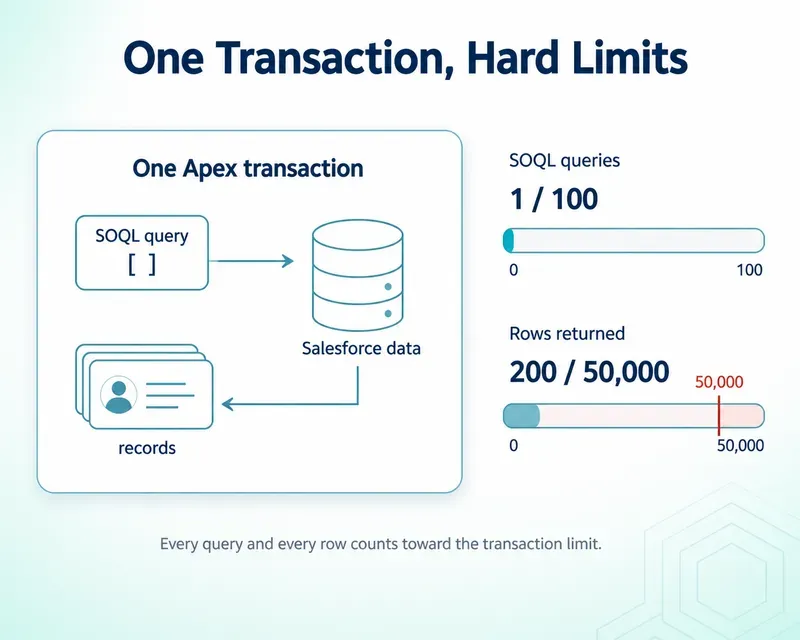
- It runs against your org, under governor limits. Each transaction can issue only so many queries (100 in synchronous Apex) and return only so many rows (50,000). A query that is fine on ten records can fail on ten thousand, so most of the patterns below exist to get the data you need in as few queries as possible.
- It returns sObjects, not rows. You get back strongly typed
AccountorContactrecords you can read and update directly, not a generic result set you have to map. - It runs in a security context. Declare the class sharing model and each database operation’s access mode instead of relying on an API-version default. The SOQL security guide owns the complete API 67.0 model and migration detail.
Hold those three in mind and most of what follows is just applying them.
The sharpest example of this I have run into was not even my own code. I was pulled in to diagnose an Aura component that had run without complaint for over two years, then started erroring for users with nothing changed in it. The backend query had never carried a LIMIT, and the data behind it had finally grown past 50,000 rows, which is the most a single transaction can return. Helping fix it came down to two fronts: capping the query, and, the part that actually mattered, narrowing its WHERE clause so it only fetched the records that were genuinely needed rather than the whole set. A query can run fine for years and still be one busy quarter away from its limit.
🧾 Basic SOQL Syntax in Apex
Section titled “🧾 Basic SOQL Syntax in Apex”A simple SOQL query in Apex might look like this:
List<Account> accounts = [SELECT Id, Name FROM Account WHERE Industry = 'Technology'];This query pulls the Id and Name of every Account in the ‘Technology’ industry. The square brackets are Apex’s inline SOQL syntax, and the result lands straight in a List<Account> you can work with in code, with no extra steps to open a connection or loop through rows yourself. That tight coupling between query and language is what makes data retrieval in Apex feel so direct.
🔗 Using SOQL with Variables
Section titled “🔗 Using SOQL with Variables”Real queries rarely know their values when you write them. The industry comes from a user’s selection, the record Id from the page they are on, the set of Ids from an earlier query. A bind variable lets a query take those values at runtime: prefix an in-scope Apex variable with a colon inside the query, and the platform substitutes its value when the query runs.
String industry = 'Technology';List<Account> accounts = [SELECT Id, Name FROM Account WHERE Industry = :industry];There are a few details worth pulling out:
- The colon is the bind.
:industrytells SOQL to read the Apex variableindustry, not to match a field or a literal of that name. What SOQL binds is the value that the expression resolves to, so a simple variable (:industry), a field reference (:account.Industry), or a method call (:ids.size()) all work, but the colon binds a value, not a fragment of SOQL, so arithmetic or operators inside the query (for example:amount + 100) won’t work. Compute the value in Apex first, then bind it. - It is the safe way to use input. Because the platform binds the value instead of splicing text into the query, inline SOQL with bind variables cannot be hit by SOQL injection. That safety is the main reason to reach for inline SOQL before query strings.
- You can bind collections.
WHERE Id IN :accountIdsbinds a wholeSetorListat once, which is how you filter a query by the results of a previous one instead of querying inside a loop:
Set<Id> accountIds = getTargetAccountIds();List<Contact> contacts = [ SELECT Id, Name, AccountId FROM Contact WHERE AccountId IN :accountIds];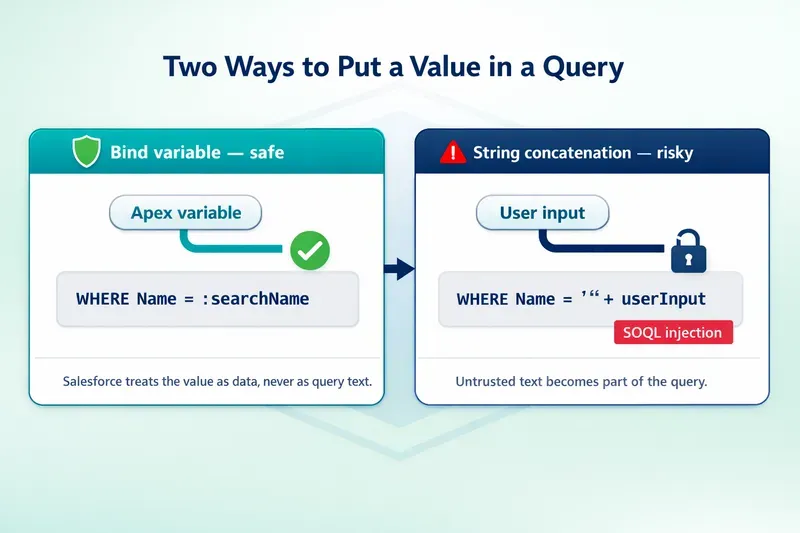
🌐 Querying Related Objects
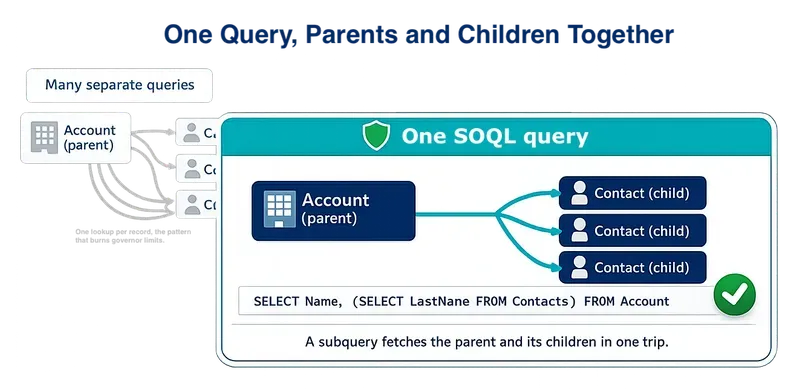
Section titled “🌐 Querying Related Objects”One query can reach across related objects, and that matters for the same reason everything else here does: the alternative, looking up each related record separately in a loop, is exactly what exhausts governor limits. Relationships run in two directions.
Child to parent uses dot notation. Starting from a Contact, Account.Name walks up the lookup to its parent account in the same query, and you can keep going, for example Account.Owner.Name:
List<Contact> contacts = [SELECT Id, Name, Account.Name FROM Contact WHERE Account.Industry = 'Technology'];This query returns each contact with its parent account’s name attached, filtered by a field on the parent, all in a single query. Two things to keep straight:
- The relationship name is not always the object name. Standard lookups usually use the object name (
Account), while custom relationships end in__r, such asOrder__r.Name. - You can traverse up to five levels from the starting object, so
Account.Owner.Profile.Nameis fine, but there is a ceiling.
Parent to child runs the other way, using a subquery, which the next section covers.
If you want to go deeper on traversal patterns and relationship names, see SOQL relationship query examples.
🚦 Querying with Multiple Conditions
Section titled “🚦 Querying with Multiple Conditions”When you need to filter records based on multiple criteria, you can use logical operators like AND and OR in your SOQL queries. Here’s an example:
// Query accounts in the 'Technology' industry with annual revenue greater than $1,000,000List<Account> techAccounts = [SELECT Id, Name, Industry, AnnualRevenue                              FROM Account                              WHERE Industry = 'Technology'                              AND AnnualRevenue > 1000000];
// Iterate through the results and process each accountfor (Account acc : techAccounts) {    System.debug('Account Name: ' + acc.Name + ', Revenue: ' + acc.AnnualRevenue);}
This query filters accounts by Industry and AnnualRevenue. The logical operator AND is used to combine conditions, ensuring both must be true for a record to be included.
For a focused filtering refresher, review SOQL WHERE clause patterns and advanced SOQL filtering techniques.
🪆 Using Subqueries
Section titled “🪆 Using Subqueries”Subqueries allow you to retrieve related records in a single query. This is particularly useful for parent-child relationships. Here’s an example:
// Query accounts and their related contactsList<Account> accountsWithContacts = [SELECT Id, Name, (SELECT Id, FirstName, LastName FROM Contacts)                                      FROM Account                                      WHERE Industry = 'Technology'];
// Iterate through accounts and their related contactsfor (Account acc : accountsWithContacts) {    System.debug('Account Name: ' + acc.Name);    for (Contact con : acc.Contacts) {        System.debug('Contact Name: ' + con.FirstName + ' ' + con.LastName);    }}
The subquery (SELECT Id, FirstName, LastName FROM Contacts) retrieves related Contact records for each Account. This approach minimises the number of queries needed and can improve efficiency.
By using these techniques, you can construct complex queries that efficiently retrieve the data needed for your Salesforce applications. These examples illustrate the flexibility and power of SOQL when integrated with Apex, enabling developers to build sophisticated data-driven solutions.
🔧 Best Practices for SOQL in Apex
Section titled “🔧 Best Practices for SOQL in Apex”- Governor Limits Awareness: Salesforce imposes limits on the number of queries and records processed. Always be mindful of these limits to avoid runtime exceptions.
- Efficient Querying: Retrieve only the necessary fields and records to optimise performance.
- Bulk Processing: Use collections and bulk processing techniques to handle large data volumes efficiently.
- Use of Indexes: Use selective filters and inspect the Query Plan where volume matters; an indexed field is not automatically selective.
- Failure Handling: Prevent predictable query failures first, then catch only the exceptions the caller can recover from.
- Security Context Awareness: Declare both the class sharing model and the database operation’s access mode; prefer
WITH USER_MODEfor user-facing queries.
For the version history, trigger exception, class/query interaction matrix, and choice between query-time rejection and a partial response, use the SOQL security guide as the canonical reference. This page keeps the focus on writing and handling queries inside Apex.
As your queries grow, pair these practices with SOQL performance optimisation strategies and SOQL security controls to avoid regressions in scale and access behaviour.
📦 Common Use Cases
Section titled “📦 Common Use Cases”- Data Retrieval: Fetching records for display in Visualforce pages or Lightning components.
- Data Manipulation: Using queried data to perform business logic or calculations.
- Integration: Retrieving data for integration with external systems or processes. For API-oriented patterns, see SOQL API integration guide.
🚨 Understanding Query Exceptions
Section titled “🚨 Understanding Query Exceptions”Reliable Apex separates failures you can prevent from failures a caller can genuinely recover from. QueryException covers runtime query problems, but it is not a catch-all for governor limits.
QueryException is an exception that occurs when there is an issue with a SOQL query in Apex. Common causes include:
- Assigning a query with zero or multiple rows directly to one sObject variable.
- Malformed dynamic SOQL, because its structure is checked at runtime rather than compile time.
- Object- or field-access failures from a query running in user mode.
Static SOQL with a misspelled field or invalid syntax normally fails when the class compiles. Exceeding a governor limit raises System.LimitException, which Apex cannot catch. The remedy for limits is bulk-safe design, not a surrounding try block.
The first one of these to catch me read List has no rows for assignment to SObject. I was working in an org whose older functionality looked up reference data from custom settings. The code had run cleanly for a long time, and none of us had clocked that it was assigning a query straight into a single record:
// This will throw "List has no rows for assignment to SObject"// if no matching configuration record exists.Custom_Setting__c config = [ SELECT Id, Name FROM Custom_Setting__c WHERE Name = 'Reference_1' LIMIT 1];Assigning a query into a single Custom_Setting__c variable only works when the query returns exactly one row. The day someone deleted that custom setting, the query returned nothing, the assignment had no row to bind to, and users started seeing the exception. The fix was small: query into a list, check whether anything came back, and handle the missing record on purpose instead of assuming it would always be there.
List<Custom_Setting__c> configs = [    SELECT Id, Name    FROM Custom_Setting__c    WHERE Name = 'Reference_1'    LIMIT 1];
if (configs.isEmpty()) {    // Handle the missing configuration deliberately, do not assume a row.    return;}
Custom_Setting__c config = configs[0];
🧯 Handling QueryException
Section titled “🧯 Handling QueryException”Catch QueryException only where you can handle it intentionally, such as adding safe context, returning a user-friendly error, or applying a documented fallback. Do not wrap every query automatically; let unexpected failures surface so defects are not hidden.
public with sharing class AccountService { @AuraEnabled(cacheable=true) public static List<Account> getAccounts(List<Id> accountIds) { try { return [ SELECT Id, Name, AnnualRevenue FROM Account WHERE Id IN :accountIds WITH USER_MODE ]; } catch (QueryException e) { // Log e using your server-side logging standard. throw new AuraHandledException( 'Accounts could not be loaded with your current access.' ); } }}🛟 Best Practices for Exception Handling
Section titled “🛟 Best Practices for Exception Handling”- Prevent known shapes: Query into a list when zero rows are legitimate, validate dynamic identifiers against an allowlist, and use binds for values.
- Catch only recoverable failures: A catch block should have a defined outcome, not just print a debug line and continue with incomplete data.
- Log safely: Record enough server-side context to investigate without exposing raw queries, record data, or permission details to the user.
- Design around limits:
LimitExceptioncannot be caught, so bulkify queries, keep them outside loops, and monitor row counts before the transaction reaches the ceiling.
The list-assignment example above is the important pattern: remove avoidable exceptions from normal control flow, and reserve try/catch for boundaries where recovery is deliberate.
🕒 When should I use inline SOQL versus Database.query() in Apex?
Section titled “🕒 When should I use inline SOQL versus Database.query() in Apex?”Use inline SOQL for fixed, compile-time queries because it is easier to read and checked at compile time. Use Database.query() for dynamic SOQL when fields, objects, or filters must be assembled at runtime.
📉 How do I avoid hitting SOQL governor limits in triggers?
Section titled “📉 How do I avoid hitting SOQL governor limits in triggers?”Bulkify your logic by querying once per object type, moving SOQL outside loops, and working with collections. Filter selectively and retrieve only fields you need. Triggers, Limits & Bulk Patterns walks through the full bulkification pattern.
🔐 Should I prefer WITH USER_MODE or WITH SECURITY_ENFORCED?
Section titled “🔐 Should I prefer WITH USER_MODE or WITH SECURITY_ENFORCED?”Prefer WITH USER_MODE for new user-facing queries and treat WITH SECURITY_ENFORCED as legacy. The SOQL security guide explains why this is an upgrade rather than a direct rename, how API 67.0 changed the defaults, and what to test when migrating older classes.
🚀 What is the fastest way to troubleshoot a slow SOQL query in Apex?
Section titled “🚀 What is the fastest way to troubleshoot a slow SOQL query in Apex?”Use the Query Plan tool to inspect selectivity, cardinality, and cost, then improve filters, reduce returned fields, and verify index usage.
✅ Conclusion
Section titled “✅ Conclusion”Reliable SOQL in Apex comes down to a few reviewable decisions: bind values, query once for a collection, select only what the use case needs, declare the access mode, and treat governor limits as design constraints rather than catchable errors. The strongest code also defines what zero rows, missing permissions, and growing data volume should do before those conditions reach production.
Next on the advanced learning path is FOR VIEW, FOR REFERENCE, and FOR UPDATE, which extends inline SOQL with usage tracking and row locking.