SOQL Fundamentals
Reports and list views answer many day-to-day questions, but sometimes you need the records behind them: Contacts with a particular surname, Accounts in one industry, or the ten most recent Opportunities. SOQL (Salesforce Object Query Language) is how you ask Salesforce for that data.
SOQL is used in tools, Apex, and Salesforce APIs. Its syntax resembles SQL, but its object model, relationship queries, security behaviour, and platform limits are Salesforce-specific. Carrying SQL assumptions across without checking them is an easy way to write a query that either fails or returns the wrong data.
By the end of this guide, you will be able to write, run, and inspect a first query. You will also know how to recognise each clause, find the API names SOQL expects, and choose between an explicit field list and FIELDS().
🧱 Read your first query
Section titled “🧱 Read your first query”Start with a specific question: return up to ten Contacts whose last name is Smith, ordered by name.
SELECT Id, Name, EmailFROM ContactWHERE LastName = 'Smith'ORDER BY NameLIMIT 10Each clause answers one part of that question:
| Clause | What it tells Salesforce | Required? |
|---|---|---|
SELECT | Which fields to return | Yes |
FROM | Which object to query | Yes |
WHERE | Which records qualify | No |
ORDER BY | How to sort the result | No |
LIMIT | The maximum number of records to return | No |
The clauses must appear in SOQL’s defined syntax order. That is the grammar of the statement, not a promise that Salesforce reads or filters the data in the same order behind the scenes.
🧩 Build the query clause by clause
Section titled “🧩 Build the query clause by clause”📌 Start with SELECT and FROM
Section titled “📌 Start with SELECT and FROM”Every SOQL query needs SELECT and FROM:
SELECT Id, NameFROM AccountSELECT specifies the fields you want returned, separated by commas. FROM specifies the object you want to query. This query requests the Id and Name of every Account the query is allowed to return.
An explicit field list also defines the shape of the result for the code, export, or person consuming it. Include Id when that consumer needs to identify, update, or link back to a record.
🔍 Add WHERE to choose the records
Section titled “🔍 Add WHERE to choose the records”Without a WHERE clause, the query asks for every available record on the object. Add a filter when the question is narrower:
SELECT Id, Name, PhoneFROM AccountWHERE Industry = 'Technology'This returns Accounts whose Industry exactly matches Technology. Accounts with a blank Industry do not match that condition. You can combine conditions with operators such as AND and OR; Filtering with the WHERE clause develops that part of the query in detail.
📊 Control order and result size
Section titled “📊 Control order and result size”Use ORDER BY when the sequence matters:
SELECT Id, Name, AnnualRevenueFROM AccountORDER BY AnnualRevenue DESCDESC places the highest AnnualRevenue values first. Use ASC for ascending order.
LIMIT sets a maximum result size:
SELECT Id, NameFROM ContactWHERE LastName = 'Smith'ORDER BY NameLIMIT 10This query can return fewer than ten Contacts when fewer records match. When you combine LIMIT with ORDER BY, the result also states which ten records you want. Without an order, Salesforce does not guarantee which matching records make up that subset. Sorting on more than one field, controlling where nulls appear, and paging with OFFSET come next; Ordering and Limiting SOQL Results develops them in detail.
🔑 Use API names, not labels
Section titled “🔑 Use API names, not labels”Salesforce screens show labels written for people. SOQL uses API names, the stable identifiers used by code and integrations. A label can contain spaces or be renamed without changing its API name.
| Metadata type | Example label | Example API name |
|---|---|---|
| Standard field | Account Name | Name |
| Standard field | Created Date | CreatedDate |
| Standard field | Annual Revenue | AnnualRevenue |
| Custom field | Customer Priority | Customer_Priority__c |
| Standard object | Contact Point Email | ContactPointEmail |
| Custom object | Project | Project__c |
| Managed-package object | Custom Object | namespace__Custom_Object__c |
Custom fields and objects normally end in __c. A component installed from a managed package also begins with the package namespace. Do not try to derive an unfamiliar API name from its label; confirm it in Setup → Object Manager → Object → Fields & Relationships, or inspect the object’s metadata in your query tool.
📦 Understand FIELDS()
Section titled “📦 Understand FIELDS()”SOQL does not support SQL’s SELECT *. If you are exploring an object and need a broader field group, FIELDS() is the supported SOQL feature:
SELECT FIELDS(STANDARD)FROM AccountLIMIT 10FIELDS(STANDARD) expands to the object’s standard fields. FIELDS(CUSTOM) expands to its custom fields, while FIELDS(ALL) combines both groups:
SELECT FIELDS(ALL)FROM AccountLIMIT 200🎯 Keep the result predictable
Section titled “🎯 Keep the result predictable”A query is not correct merely because it executes. Before reusing one in code, automation, or an integration, check that it returns the intended fields, records, order, and volume.
- Select only the fields the consumer needs. This reduces data transfer and makes the result’s purpose easier to see.
- Add filters that express the business question. A missing or overly broad filter can be harmless in a small sandbox and expensive against production data.
- Use
ORDER BYwhen code or a person will rely on the sequence. - Use a small
LIMITwhile exploring, but do not mistake that safety limit for a complete production filter. - Test with a representative user, not only an administrator. The rows and fields returned depend on the caller and the query’s security context; Apex can also explicitly use user or system mode. SOQL Security and Access Control explains how sharing, object permissions, and field-level security affect a query.
- Review performance and governor limits before moving a query into Apex. SOQL Performance Optimisation covers that work in depth.
🚀 Run and inspect the query
Section titled “🚀 Run and inspect the query”Run the same small query in a query tool before putting it into code. Inspect the column names, row count, values, and ordering, not only the absence of an error.
🧰 Use the Developer Console
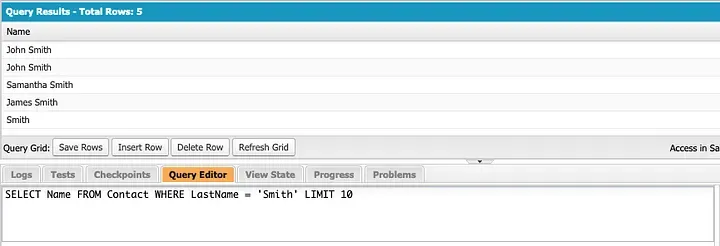
Section titled “🧰 Use the Developer Console”To follow the screenshot, use this shorter version of the Contact query:
SELECT NameFROM ContactWHERE LastName = 'Smith'LIMIT 10-
Open the Developer Console. In Lightning Experience, select the Setup gear in the top-right corner, then select Developer Console. It opens in a separate window.
-
Open Query Editor. Select the Query Editor tab in the lower panel.
-
Run the query. Paste the query above into Query Editor and select Execute.
-
Check the result. Confirm that the grid contains the
Namecolumn and no more than ten rows. Each returned Contact should have the last name Smith. Zero rows can be a valid result if your org has no matching Contacts.
🔎 Use Salesforce Inspector
Section titled “🔎 Use Salesforce Inspector”If your organisation permits the Salesforce Inspector browser extension, it provides another convenient query workspace.
-
Open Salesforce Inspector while signed in to the org, then select Data Export.
-
Paste or build the query, checking that the suggested object and field names match the API names you intend to use.
-
Run the export and inspect it using the same checks: fields, row count, values, and order.
If you work in VS Code, Salesforce also provides an official SOQL Builder for constructing and running queries against an authorised org.
❓ Frequently asked questions
Section titled “❓ Frequently asked questions”🧾 Can I use field labels in SOQL?
Section titled “🧾 Can I use field labels in SOQL?”No. SOQL requires API names such as AnnualRevenue, not labels such as Annual Revenue. Find them in Setup → Object Manager → Object → Fields & Relationships, or use metadata suggestions in a query tool.
🔄 How is SOQL different from SQL?
Section titled “🔄 How is SOQL different from SQL?”SOQL queries Salesforce objects and follows the relationships already defined between them. Instead of a general-purpose SQL JOIN, you traverse a parent relationship or use a subquery for child records. Instead of SELECT *, you list the fields you need or use a supported FIELDS() group.
SOQL also provides Salesforce-specific features, including date literals such as TODAY and LAST_WEEK. Its limits depend on where the query runs, such as Apex or an API. The SOQL relationships guide explains the available relationship patterns in detail.
📏 How many records can SOQL return?
Section titled “📏 How many records can SOQL return?”There is no single limit that applies everywhere:
| Execution surface | Result behaviour |
|---|---|
| Apex | Up to 50,000 total SOQL query rows in a transaction, across all queries rather than per query |
| REST and SOAP APIs | Up to 2,000 records per response batch, with a query locator when more data remains |
| Large asynchronous work | Batch Apex with Database.QueryLocator and Bulk API are designed for larger workloads |
OFFSET is not a way around these limits; it can skip at most 2,000 rows. For stable paging patterns, see Ordering and Limiting SOQL Results.
👤 Do I need to be a developer to use SOQL?
Section titled “👤 Do I need to be a developer to use SOQL?”No. Administrators also use SOQL for data investigation, validation, migration preparation, and troubleshooting. You need permission to access the query tool and the data being queried, but you do not need to write Apex.
🚨 Common mistakes to catch early
Section titled “🚨 Common mistakes to catch early”- Using a label instead of an API name causes a field or object error.
- Writing
SELECT *is invalid SOQL syntax. Use explicit fields, or an appropriateFIELDS()group where it is supported. - Leaving out a filter can return far more records than the question requires.
- Using
LIMITwithoutORDER BYwhen sequence matters leaves the selected subset undefined. - Assuming SQL join syntax will work overlooks SOQL’s relationship-query model.
The useful habit is to compare the result with the original question. If the fields, rows, order, or volume do not match, the query is not finished.
✅ Conclusion
Section titled “✅ Conclusion”You can now build a SOQL query by naming the fields, choosing the root object, filtering the records, defining any required order, and limiting the result when appropriate. You can also distinguish labels from API names and use FIELDS() without treating it as a direct replacement for SELECT *.
Practise by changing one part of the opening Contact query at a time, then inspect how the result changes. Next, Filtering with the WHERE clause develops the part that most often decides whether a production query returns the right records.