SOQL: Querying Parent and Child Objects

Now that you know how to sort, limit, and paginate results with ORDER BY, LIMIT, and OFFSET from the previous guide, the next step is to query related objects. Relationship queries start with one decision before the syntax: which object supplies the records. What follows from that is whether related data travels with each one, or only filters which ones you get.
Start with that result shape. This guide shows you how to select the root object, traverse from a child to a parent, return child collections, filter with a semi-join, find the correct relationship names, and check the depth supported by the surface that runs the query.
🧭 Choose the root object first
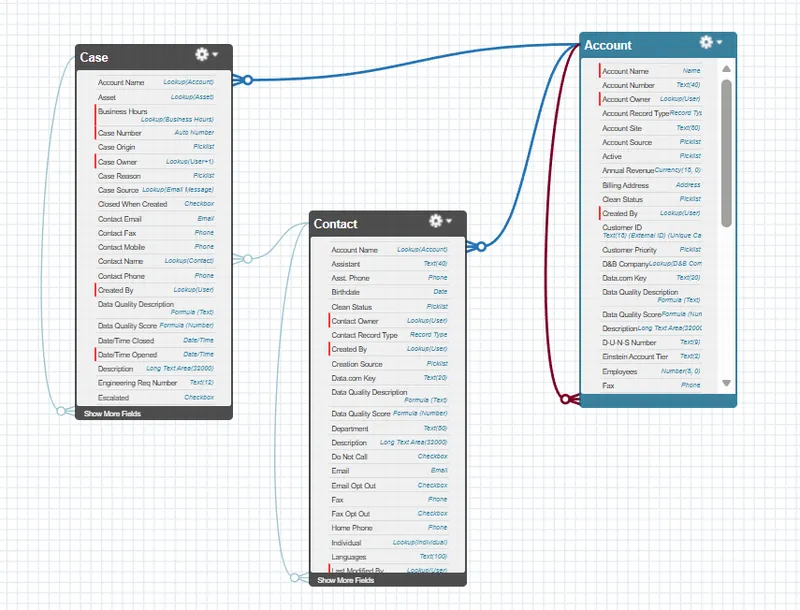
Section titled “🧭 Choose the root object first”The object in the FROM clause is the root object. It determines what each returned record represents. Schema Builder shows the connections between objects, but you still need to choose the direction that matches the data your caller needs.
| Required result | Root object | Relationship pattern |
|---|---|---|
| One record per Contact, with fields from its Account | Contact | Child-to-parent dot notation |
| One record per Account, with its Contacts as a collection | Account | Parent-to-child subquery |
| Accounts selected by whether matching Contacts exist | Account | Semi-join in the WHERE clause |
The first two shapes are not interchangeable. Starting from Contact can produce several rows for the same Account. Starting from Account produces one Account record whose Contacts relationship contains zero or more child records.
🔗 Lookup and master-detail relationships
Section titled “🔗 Lookup and master-detail relationships”Lookup and master-detail fields both connect a child record to a parent, but they impose different data rules. Those rules affect whether a missing parent is possible, not the relationship-query syntax.
| Relationship type | Parent requirement | SOQL consequence |
|---|---|---|
| Lookup | Can be optional or required | If an optional lookup is blank, the child can still be returned and the parent relationship is null |
| Master-detail | Required | Every detail record has a master record, although an individual field selected from that master can still be blank |
🔼 Traverse from child to parent
Section titled “🔼 Traverse from child to parent”When the root object is the child and you need fields from one of its parents, use dot notation:
SELECT FirstName, LastName, Account.NameFROM ContactThe result still contains one record per Contact. Account.Name adds data from the single related Account; it does not turn Account into the root object. You can also filter Contacts by a parent field:
SELECT FirstName, LastName, Account.NameFROM ContactWHERE Account.Industry = 'Technology'For a custom relationship, derive the upward path from the relationship field API name. If Task__c has a lookup field named Project__c, replace __c with __r to traverse through it:
SELECT Name, Project__r.NameFROM Task__cThe path comes from the field, not necessarily the parent object’s API name. A field named Delivery_Project__c, for example, produces the path Delivery_Project__r.Name.
Each relationship name before the final field represents one parent hop. In the unqualified path Account.Owner.Name, Account and Owner are the two hops: Contact to Account, then Account to the Account owner.
🔽 Traverse from parent to children
Section titled “🔽 Traverse from parent to children”When the root object is the parent and you need a collection of its child records, place a relationship subquery inside the SELECT clause:
SELECT Name, (SELECT FirstName, LastName FROM Contacts)FROM AccountThis query returns one record per Account. Each Account has a Contacts collection containing zero or more Contact records. An Account with no Contacts is still returned; its child collection is empty.
Contacts is the child relationship name, not the child object’s API name. Standard names are often plural, but do not infer them from an object label. Verify the relationship name before using it.
You can filter the parent query and child subquery independently. This example returns Technology Accounts, but includes only Contacts whose email address is known:
SELECT Name, (SELECT FirstName, LastName, Email FROM Contacts WHERE Email != null)FROM AccountWHERE Industry = 'Technology'🎯 Filter parents with a semi-join
Section titled “🎯 Filter parents with a semi-join”A filter inside a child relationship subquery controls which children appear in each Account’s Contacts collection. It does not remove an Account when that collection is empty. When the requirement is to return only Accounts that have a matching Contact, put the child query inside the parent query’s WHERE clause as a semi-join.
This query returns Accounts that have at least one Contact whose last name is Smith:
SELECT NameFROM AccountWHERE Id IN ( SELECT AccountId FROM Contact WHERE LastName = 'Smith')Read it from the inside out:
- The inner query finds the
AccountIdvalues on Contacts whose last name is Smith. - The outer query keeps Accounts whose
Idappears in that set.
The result is still rooted on Account, so each matching Account is returned once even if several of its Contacts are named Smith. The Contact records are used only as a condition and are not included in the response.
If the caller needs the matching Contacts as well, use a child relationship subquery in SELECT alongside the semi-join:
SELECT Name, (SELECT FirstName, LastName FROM Contacts WHERE LastName = 'Smith')FROM AccountWHERE Id IN ( SELECT AccountId FROM Contact WHERE LastName = 'Smith')The two subqueries have separate jobs. The semi-join decides which Accounts are returned; the relationship subquery decides which Contacts appear beneath each Account.
From experience: Early in my Salesforce developer career, I tripped over this exact pattern. I saw the semi-join return the correct parent records and assumed that meant the child records were already filtered too. The parents were right, but the nested child lists included more records than I expected. It was an important lesson, especially since the issue was found in production. If you want only matching child records in the response, you need to repeat the child condition in the relationship subquery.
The inverse is an anti-join. This query changes IN to NOT IN to return Accounts with no Contact whose last name is Smith:
SELECT NameFROM AccountWHERE Id NOT IN ( SELECT AccountId FROM Contact WHERE LastName = 'Smith')That includes Accounts with no Contacts at all and Accounts whose Contacts all have other last names.
🔍 Find relationship names instead of guessing
Section titled “🔍 Find relationship names instead of guessing”The upward and downward names for one relationship are stored separately, and standard and custom relationships follow different rules again:
| Direction | Standard relationship | Custom relationship |
|---|---|---|
| Child to parent (dot notation) | A stored property on the field, usually the foreign key without its Id suffix: AccountId gives Account | The field API name with __c replaced by __r: Project__c becomes Project__r |
| Parent to child (subquery) | The configured child relationship name, commonly a plural such as Contacts | The configured child relationship name plus __r: Tasks becomes Tasks__r |
A custom upward path is fully derivable: replace __c with __r. A standard upward path usually drops the Id suffix, but it is a stored property rather than a rule. The downward name is neither. The Child Relationship Name is configured on the relationship field, so it does not have to match the object’s plural label. Open the child object in Object Manager, open the lookup or master-detail field under Fields & Relationships, and read the Child Relationship Name before writing the subquery.
For example, Task__c.Project__c with the Child Relationship Name Tasks gives Project__r upward and Tasks__r downward:
SELECT Name, (SELECT Name FROM Tasks__r)FROM Project__cWhen code or tooling must discover a name at runtime, use describe metadata. A REST sObject describe response exposes fields[].relationshipName for upward paths and childRelationships[].relationshipName for downward paths. Apex exposes the same names through DescribeFieldResult.getRelationshipName(), DescribeSObjectResult.getChildRelationships(), and ChildRelationship.getRelationshipName().
📏 Check the limits for the execution surface
Section titled “📏 Check the limits for the execution surface”“Five levels” means a parent root plus four nested child relationship subqueries. The rollout depended on where the SOQL runs: REST and SOAP query calls gained this support in API 58.0 (Summer ’23), while Apex gained it for classes compiled at API 61.0 and later (Summer ’24).
| Execution surface | Parent-to-child depth | Version or boundary |
|---|---|---|
| REST and SOAP query calls | Parent root plus up to four nested child relationships | API 58.0+ (Summer ’23) for standard and custom objects |
| Apex | Parent root plus up to four nested child relationships | Classes compiled at API 61.0+ (Summer ’24) |
| REST and SOAP query calls | Up to two parent-to-child relationship levels | API 57.0 and earlier |
| Bulk API and Bulk API 2.0 | Five-level parent-to-child nesting is not supported | Plan separate root-object extracts and relate the results by record ID |
Five-level parent-to-child queries are not supported for big objects or external objects either. Use a shallower supported query and check the additional relationship limits for that object type.
When the query runs in Apex, each parent-to-child relationship subquery counts as an additional query against the aggregate-query limit, and its rows count towards the transaction’s overall SOQL query-row limit.
Dot notation can specify up to five levels in a child-to-parent relationship. A query can reference up to 55 child-to-parent relationships and 20 parent-to-child relationships, but those ceilings are not design targets. Deep or wide queries can still produce an awkward response, consume substantial Apex heap and query-row limits, or transfer more data than the caller needs.
Split the work into separate queries when the execution surface does not support the required depth, the nested child volume is too large, or the caller needs separate flat collections rather than one nested response.
💡 Test the query in its real context
Section titled “💡 Test the query in its real context”Developer Console or SOQL Builder is useful for exploring relationship names and result shapes. A query intended for Apex or an API integration should also be tested on that execution surface and at its deployed API version. The SOQL and Salesforce APIs guide covers off-platform query behaviour in more detail.
Keep these operational checks in view:
- Filter both the root query and child subqueries as narrowly as the use case allows.
- Select only the fields the caller needs, especially in child collections that can grow quickly.
- Confirm that the caller expects nested child data rather than a flat result set.
- Apply the security controls covered in SOQL security and access control to every object and field the relationship query exposes.
✅ Conclusion
Section titled “✅ Conclusion”Choose the result shape before the syntax. Put the object you need one record per in the FROM clause. Use dot notation to add fields from a parent, a relationship subquery to return a child collection, a semi-join to keep root records that have a matching related record, or an anti-join to keep those that do not.
Verify the relationship names in metadata, then test the query on the execution surface and API version that will run it. Split the work when that surface does not support the required depth, a child collection can grow too large, or the caller would be better served by separate flat results.
🔜 Your Next Steps
Section titled “🔜 Your Next Steps”- Traverse upward: Write a child-to-parent query using dot notation, then filter it on a parent field.
- Traverse downward: Turn it around with a parent-to-child subquery, and note how Accounts with no Contacts still return.
- Filter with joins: Use
INto find parents that have a matching child record, then change it toNOT INand compare the anti-join result.
Next, move on to SOQL: Using Aggregate Functions to summarise those related records with counts, sums, and averages.