SOQL: Ordering and Limiting

In the previous article on advanced filtering, you learned how to narrow a query down to exactly the right records. If SELECT and FROM still feel new, revisit SOQL Fundamentals first. The next step is controlling how those records come back: their order, and how many of them. In this post, we’ll explore how to use the ORDER BY clause for sorting and the LIMIT and OFFSET clauses for controlling the number of records returned in SOQL queries.
📊 ORDER BY Clause: Basic Sorting Examples
Section titled “📊 ORDER BY Clause: Basic Sorting Examples”The ORDER BY clause controls how SOQL arranges query results. You can sort by one or more fields, in ascending or descending order. Most fields sort as you’d expect, but some field types can’t be used in an ORDER BY clause. These include multi-select picklists, rich and long text areas, encrypted fields, and data category group references. If a query fails on a field that looks sortable, check its field type before rewriting the rest of the query.
📈 Ascending Order (Default)
Section titled “📈 Ascending Order (Default)”SELECT Name, AnnualRevenue FROM Account ORDER BY AnnualRevenue ASCThis query sorts accounts by AnnualRevenue in ascending order, from the lowest to the highest. Ascending order is the default sorting behaviour in SOQL, so it does not need to be explicitly specified. However, it is considered good practice to include ASC in your query. By explicitly stating the sorting order, you enhance the readability and clarity of your query, making it immediately clear to anyone reviewing the code what the intended sorting behaviour is.
📉 Descending Order
Section titled “📉 Descending Order”SELECT Name, AnnualRevenue FROM Account ORDER BY AnnualRevenue DESCThis query sorts accounts by AnnualRevenue in descending order, from the highest to the lowest. Use DESC to explicitly specify descending order.
🔤 Text Field Sorting (Alphabetical)
Section titled “🔤 Text Field Sorting (Alphabetical)”SELECT Name, Industry FROM Account ORDER BY NameThis query sorts accounts alphabetically by the Name field. Text fields are sorted in alphabetical order by default.
When using the ORDER BY clause in SOQL, if two or more records have identical values in the field being sorted, SOQL will return these records in an unspecified order relative to each other. This means that while the records with identical values will appear together in the sorted list, their internal order is not guaranteed to be consistent across different query executions.
🔀 Multi-Field Sorting
Section titled “🔀 Multi-Field Sorting”To ensure a consistent and predictable order for records with identical values, SOQL allows you to add additional fields to the ORDER BY clause. By specifying a secondary (or tertiary) field for sorting, you can control the order of records that have the same value in the primary sorting field.
SELECT Name, Industry, AnnualRevenueFROM AccountORDER BY Industry ASC, AnnualRevenue DESCIn this query, accounts are first sorted by Industry in ascending order (A-Z). Within each industry, accounts are further sorted by AnnualRevenue in descending order (highest first). The order of fields in the ORDER BY clause determines the sorting priority.
For example, consider the following records:
| Name | Industry | AnnualRevenue |
|---|---|---|
| Tech Solutions | Technology | 500,000 |
| Alpha Corp | Finance | 1,000,000 |
| Beta Industries | Manufacturing | 500,000 |
| Gamma Enterprises | Healthcare | 750,000 |
| Delta Co | Technology | 1,000,000 |
After applying our multi-field sorting query (ORDER BY Industry ASC, AnnualRevenue DESC), the records will be ordered as follows:
| Name | Industry | AnnualRevenue |
|---|---|---|
| Alpha Corp | Finance | 1,000,000 |
| Gamma Enterprises | Healthcare | 750,000 |
| Beta Industries | Manufacturing | 500,000 |
| Delta Co | Technology | 1,000,000 |
| Tech Solutions | Technology | 500,000 |
Note: “Finance” comes first alphabetically, followed by “Healthcare”, “Manufacturing”, and “Technology”. Within “Technology”, Delta Co is shown first because it has a higher AnnualRevenue (1,000,000) than Tech Solutions (500,000).
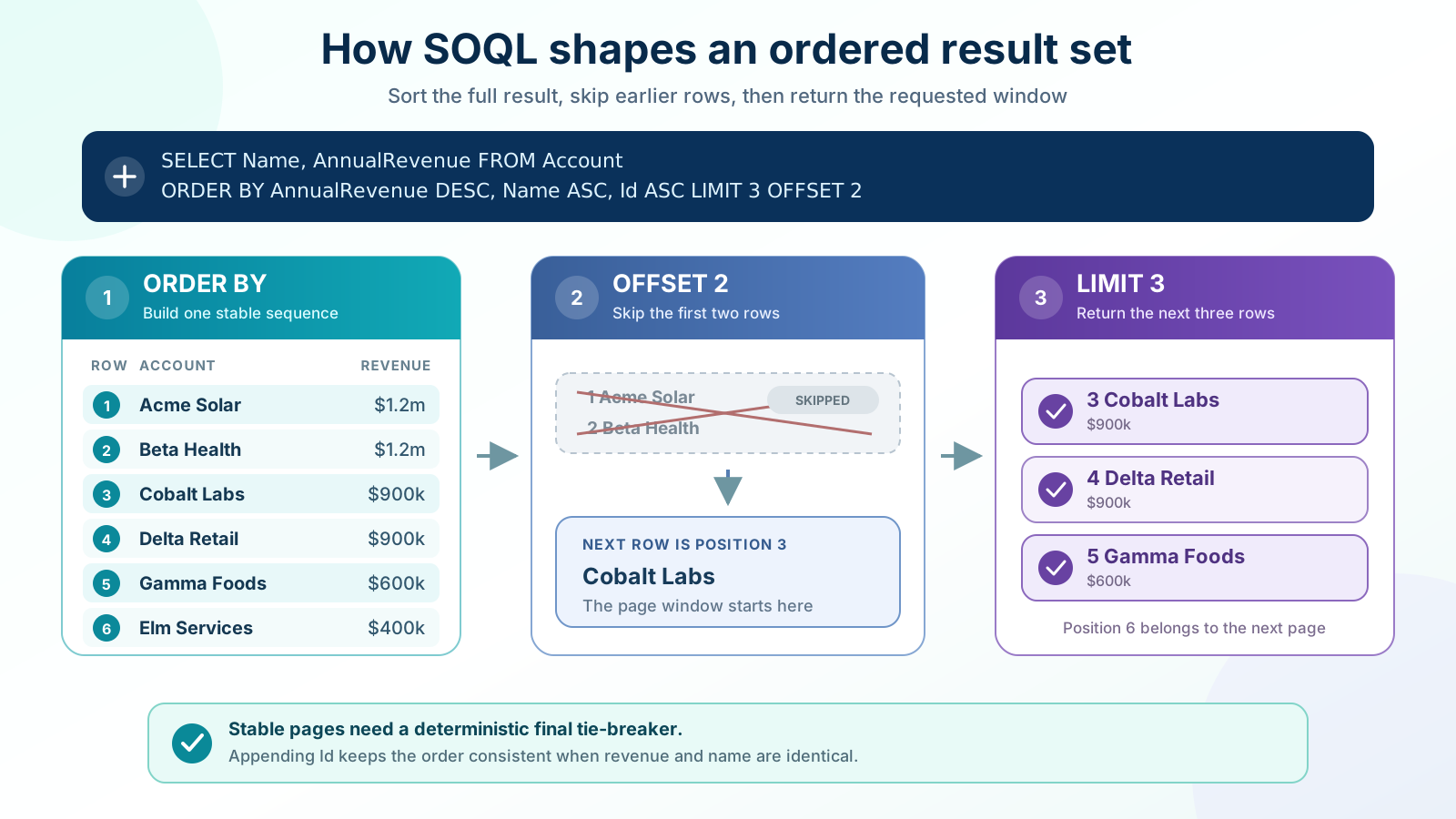
A secondary sort reduces ambiguity, but it only removes it when the combined sort values are unique. Two accounts in the same industry can easily share the same revenue, leaving their relative order unspecified. Salesforce recommends adding Id as the final tie-breaker when duplicate sort values are possible. Using ORDER BY Industry ASC, AnnualRevenue DESC, Id ASC gives every record a deterministic position within the current result set. That matters particularly for pagination, although records can still move between page requests if the underlying data changes.
The same ordering becomes the foundation for pagination. The diagram below previews the full result-shaping sequence: ORDER BY establishes a deterministic order, OFFSET skips earlier positions, and LIMIT returns the requested window. The later section explains how to use OFFSET and where its limits start to matter.
🫙 NULL Value Sorting Behaviour
Section titled “🫙 NULL Value Sorting Behaviour”Understanding how NULL values are sorted is critical. In SOQL, null values are sorted first by default for both ascending (ASC) and descending (DESC) sorts. Records with empty/NULL values in the sort field appear at the top of your results unless you override that behaviour.
You can control null placement on direct fields (fields on the object in your FROM clause) using NULLS FIRST and NULLS LAST:
-
Move NULLs to the end (most common override): If you want accounts sorted from lowest to highest revenue but don’t want blank accounts at the top:
SELECT Name, AnnualRevenue FROM Account ORDER BY AnnualRevenue ASC NULLS LAST -
Move NULLs to the end while sorting descending:
SELECT Name FROM Account ORDER BY Name DESC NULLS LAST(Without
NULLS LAST, nulls still appear first by default, even withDESC.)
Unlike PostgreSQL and similar databases, SOQL does not change null placement with DESC; nulls stay first until you add NULLS LAST.
For further reading, see the official Salesforce ORDER BY documentation.
📏 LIMIT and OFFSET: Controlling Result Quantity
Section titled “📏 LIMIT and OFFSET: Controlling Result Quantity”The LIMIT clause is used to restrict the number of records returned by a query, while the OFFSET clause is used for pagination.
🛑 LIMIT Clause: Limiting Results
Section titled “🛑 LIMIT Clause: Limiting Results”SELECT Name, AnnualRevenueFROM AccountWHERE AnnualRevenue != NULLORDER BY AnnualRevenue DESCLIMIT 10This query retrieves the top 10 accounts with the highest AnnualRevenue. The LIMIT 10 clause restricts the result set to only the first 10 records. Its WHERE AnnualRevenue != NULL condition removes blank revenue values; the WHERE clause guide covers explicit NULL filtering and the edge cases that come with it.
📖 OFFSET for Pagination
Section titled “📖 OFFSET for Pagination”Pagination allows you to retrieve records in chunks, making it easier to handle large datasets.
-
Page 1: First 25 Records
SELECT Name, Email FROM Contact ORDER BY Name LIMIT 25 OFFSET 0 -
Page 2: Next 25 Records
SELECT Name, Email FROM Contact ORDER BY Name LIMIT 25 OFFSET 25 -
Page 3: Records 51–75
SELECT Name, Email FROM Contact ORDER BY Name LIMIT 25 OFFSET 50
The OFFSET clause specifies the starting point for the records to be returned. Three boundaries decide whether it’s the right tool:
- The maximum offset is 2,000 rows. Asking for more returns a
NUMBER_OUTSIDE_VALID_RANGEerror, soOFFSETcan only ever reach into the first couple of thousand records of a result set. - It works in SOAP API, REST API, and Apex, but not in SOQL run through the Bulk APIs or Streaming API. It’s also restricted in subqueries: using it in one generally throws
MALFORMED_QUERY, the narrow exception being a subquery whose parent has aLIMIT 1clause, and never in aWHEREclause subquery. - There is no server-side cursor behind it. Each paged query is evaluated independently against the data as it stands at that moment.
That last point is the one that causes support tickets. Because no cursor is held open, records created, deleted, or edited between page one and page two shift the underlying result set, so a record can appear twice or be skipped entirely as the pages move under it. A stable ORDER BY ending in Id reduces the churn, but it doesn’t eliminate it.
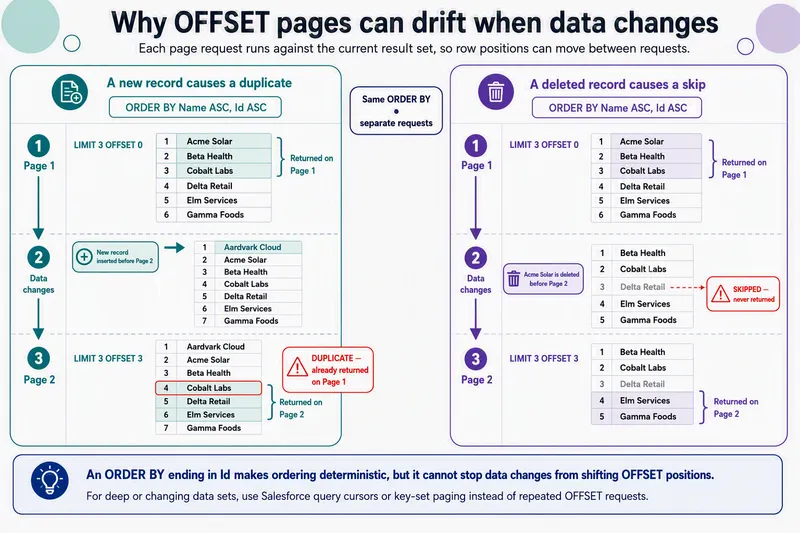
For anything deeper than a few pages, use a cursor instead. Off-platform integrations should follow Salesforce’s nextRecordsUrl or queryMore() cursor, as covered in SOQL and Salesforce APIs. Salesforce is explicit that repeated offsets into a large result set carry a higher performance cost than queryMore() against a server-side cursor.
For further reading, see the official Salesforce OFFSET documentation.
✅ Conclusion
Section titled “✅ Conclusion”ORDER BY, LIMIT, and OFFSET look like presentation details, but they decide whether a result set is reproducible. The judgement worth taking away is that a sort is only deterministic when it ends in a unique field. Everything else in this article depends on that: pagination that doesn’t duplicate or skip records, a top-ten list that stays the same on refresh, and a bug you can actually reproduce when someone reports that the order “changes randomly”.
The second call is knowing when to stop using OFFSET. It’s a good fit for a handful of pages in a UI, and the wrong tool for walking a large object, where the 2,000-row ceiling and the absence of a server-side cursor both work against you. Reach for a cursor or key-set paging at that point rather than pushing the offset higher.
🔜 Your Next Steps
Section titled “🔜 Your Next Steps”- Break ties predictably: Take a query that sorts on a field with duplicate values, run it a few times, then add
Id ASCas the final sort and confirm the order stops moving. - Build a clean top-N list: Pair a
LIMITwithORDER BYto pull the top records, then page through the rest withOFFSET. - Control null placement: Test
NULLS LASTon a sort field that contains blanks and confirm where they land.
Next, move on to SOQL: Querying Parent and Child Objects to pull related data across objects in a single query.