Understanding Salesforce Aura — UI Fundamentals

In the Evolution of Frameworks we traced Salesforce’s UI progression from early S-controls through Visualforce and Aura to Lightning Web Components, and the previous guide covered Visualforce in depth. This article focuses on Aura, the original Lightning component model that sits between Visualforce and Lightning Web Components in the platform’s evolution. It introduces client-side component thinking before you move fully into LWC, and you will still see it in long lived orgs, in wrappers around LWC, and in older Lightning implementations.
Aura was introduced by Salesforce in 2014 (GA in the Winter ‘15 release), when the platform needed a richer UI model than Visualforce’s page-centric request/response pattern. Instead of rebuilding entire pages on every interaction, Aura introduced reusable client-side components, event-driven communication, and finer-grained UI updates, which made Lightning pages feel far more interactive than the Visualforce pages that came before them.
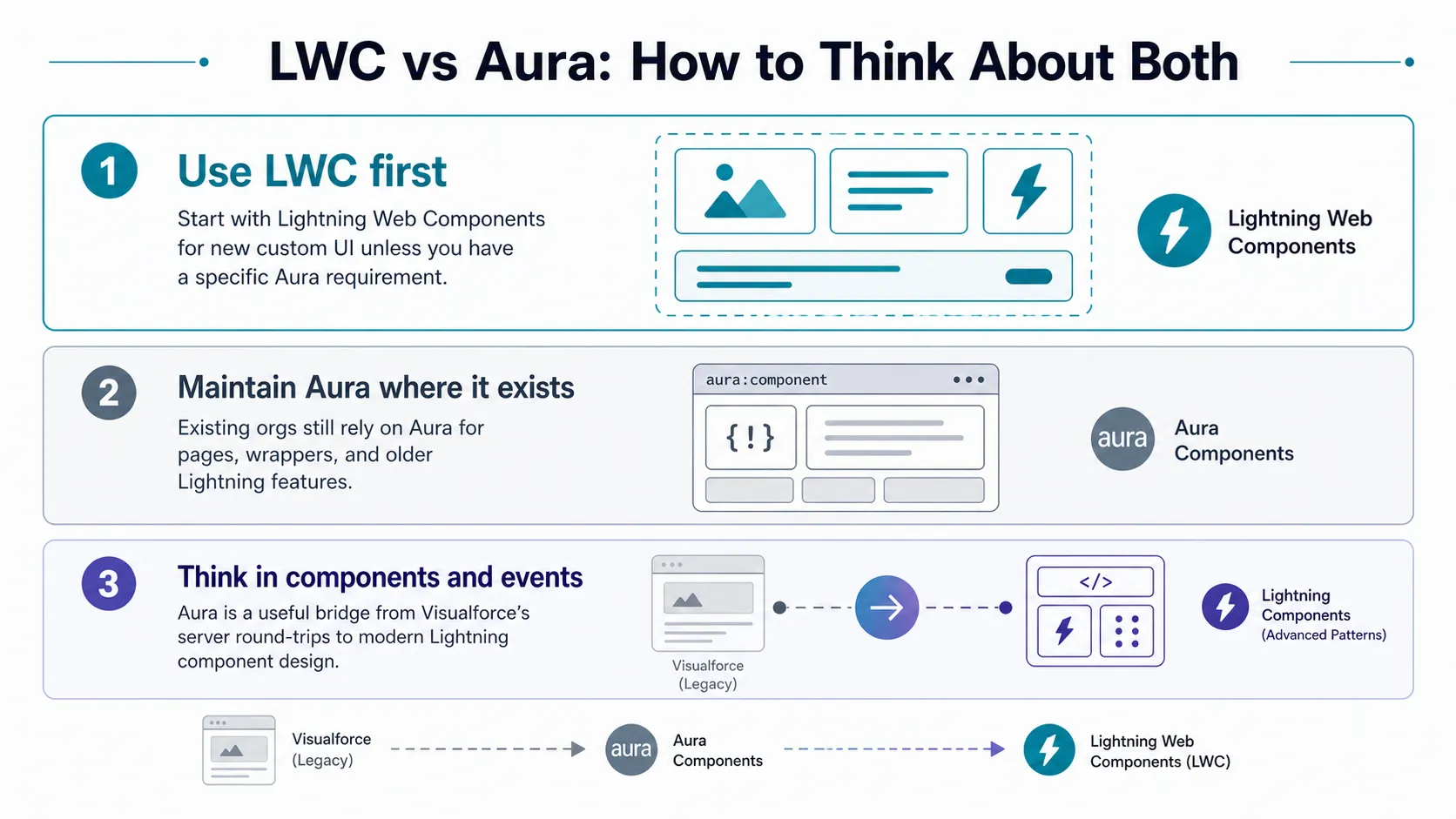
For new UI work, Salesforce recommends LWC first. Aura still matters because you will need to read it, maintain it, and sometimes use it as the layer that makes a larger Lightning solution work. Most of my own Aura work these days is maintenance and migration rather than greenfield builds, and that shapes how this guide is written: read it confidently, keep it working, and modernise it deliberately. Because Salesforce ships three major releases each year, treat details in this guide as accurate to the review date above and cross-check the official Salesforce release notes where behaviour may have changed.
⚖️ Aura vs Lightning Web Components
Section titled “⚖️ Aura vs Lightning Web Components”| Topic | Aura | LWC |
|---|---|---|
| Best fit | Maintenance, wrappers, older implementations | Most new custom UI development |
| Model | Component bundle with controller/helper files | Standards-based web components |
| Communication | Events and attributes | Reactive properties and events |
| Data access | Base components, Lightning Data Service concepts, or Apex | Base components, UI API, or Apex |
| Recommendation | Use when required | Use by default for new work (Salesforce’s guidance) |
Choose LWC first; reach for Aura only when the surrounding implementation or a feature gap makes it the better fit.
🆚 Aura vs Visualforce
Section titled “🆚 Aura vs Visualforce”Coming from the previous guide, the key distinction is that Visualforce is page-centric and primarily server-rendered, while Aura is component-centric and primarily client-driven after initial load.
| Topic | Aura | Visualforce |
|---|---|---|
| Primary model | Component bundles in the browser | Page/controller model on the server |
| Interaction style | Client-side events and partial updates | Server round-trips with page refresh or partial rerender |
| State | Component attributes in client memory | View state and controller state across requests |
| Best fit today | Maintaining legacy Lightning components and wrappers | Maintaining legacy pages, PDF/email templates, specific edge cases |
🧰 Prerequisites and Setup
Section titled “🧰 Prerequisites and Setup”Aura development is easier when your foundation is solid. Even if you are mainly maintaining existing Aura code, you still need enough platform and JavaScript context to debug confidently.
You should be comfortable with:
- Salesforce platform basics: objects, fields, records, relationships, and Lightning pages.
- Apex basics: ability to read a simple controller class and understand how an
@AuraEnabledmethod exposes data to a component. - JavaScript basics: functions, objects, events, and callback patterns.
- Lightning Experience basics: how pages are assembled and where custom components are placed.
These skills help you troubleshoot faster when issues cross markup, JavaScript controllers, Apex, and page configuration.
What you need:
- A Developer Edition org, sandbox, or scratch org where you can safely test changes.
- Install VS Code and add the Salesforce Extension Pack.
- Salesforce CLI (
sf) for source-based creation and deployment. - Source control, such as Git, for versioning and safer maintenance in shared orgs.
Confirm Aura is available in your org:
- In most Developer Edition orgs and sandboxes with Lightning Experience enabled, Aura component development is available by default.
- Ensure Lightning Experience is enabled in your org before testing or deploying Aura components.
- Verify your user can create metadata and edit Lightning pages.
- If component creation is restricted, check profile/permission set access and org governance settings before troubleshooting code.
You can create Aura components in the Developer Console, but use VS Code plus source control as your default workflow for real projects. It gives you better visibility into component bundles, easier reviews, and safer change management. If you need a full setup walkthrough, see Setting Up Your Environment in Developer Mindset & Toolkit.
🧠 The Aura Mental Model
Section titled “🧠 The Aura Mental Model”Salesforce describes Aura components as reusable units of UI. A single component owns its markup, its state, its client-side logic, and any optional calls it makes to the server. That is the core shift from Visualforce: rather than a page the server rebuilds on every interaction, you have self-contained components that hold their own state in the browser and only reach back to the server when they genuinely need data or a transaction.
Holding that ownership model in your head is what makes Aura predictable. When something misbehaves, you can usually reason about which part of the component is responsible — markup, client logic, or server — before you open a single file. The next section maps those concerns onto the actual files in the bundle.
🔁 Aura Request Lifecycle (Client + Server)
Section titled “🔁 Aura Request Lifecycle (Client + Server)”Aura feels simpler once you can picture what happens between a click and an update on screen.
- A user action triggers a client-side controller method.
- The controller updates local attributes immediately or enqueues an Apex action.
- Salesforce runs server logic (if called), then returns a callback payload.
- The callback updates component state with
cmp.set(...). - Aura re-renders affected parts of the DOM.
This means two things in practice: keep UI-only logic on the client for responsiveness, and keep server calls focused so you do not block rendering unnecessarily.
| Phase | Typical Location | Common Failure Mode |
|---|---|---|
| Event handling | Controller.js | Handler not wired or misnamed |
| Shared logic | Helper.js | Duplicate logic or inconsistent updates |
| Server call | Apex @AuraEnabled | Missing permissions or unhandled exceptions |
| Callback handling | Controller.js / Helper.js | Ignoring INCOMPLETE or ERROR states |
| Re-render | Framework runtime | Attribute not updated or wrong value provider |
📦 Anatomy of a Bundle
Section titled “📦 Anatomy of a Bundle”An Aura component is never a single file. It is a bundle of related files, each with a specific job, wired together by a shared name.
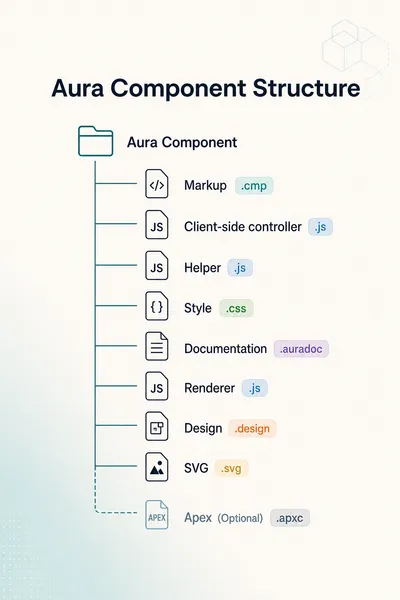
| File | Purpose |
|---|---|
.cmp | Component markup |
Controller.js | Handles user actions |
Helper.js | Reusable JavaScript logic |
.css | Component styling |
.auradoc | Optional documentation for the bundle |
Renderer.js | Optional custom render lifecycle hooks (use sparingly) |
.design | Properties shown in builders; do not expose runtime values like recordId here |
.svg | Optional icon |
| Apex class | Optional server-side logic |
The bundle is wired together by name, so MyComponent.cmp, MyComponentController.js, MyComponentHelper.js, and MyComponent.css etc. belong together.
This structure is also your troubleshooting map. UI issues usually live in the markup or the client-side controller. Logic that behaves inconsistently across actions often points to the helper. Missing or wrong data usually means the Apex class or the running user’s permissions. Knowing which file owns which concern is the fastest way to narrow down a bug.
Now that you know what makes up an Aura component, the next step is understanding where those components can be used across Salesforce.
📍 Where Aura Components Can Be Used
Section titled “📍 Where Aura Components Can Be Used”Aura components can appear in several Salesforce UI contexts, including Lightning App Builder pages, record pages, the utility bar, quick actions, Experience Builder sites, and Flow screens. A component does not show up in any of these places automatically: it must implement the right marker interface first.
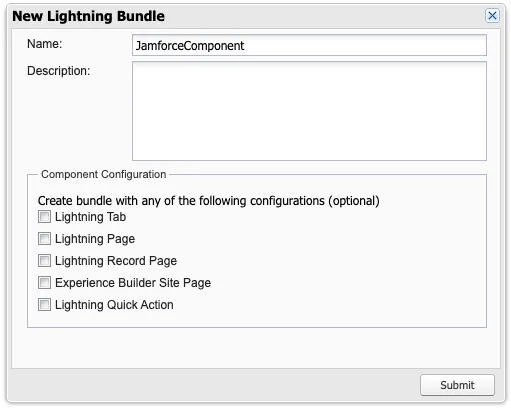
When you create a bundle in the Developer Console, the New Lightning Bundle dialog can add some of these interfaces for you through its configuration checkboxes. In VS Code you add them by hand to the <aura:component implements="..."> attribute. Either way, the interface is what makes the component available in that builder or runtime context.
| Use case | Common interface |
|---|---|
| Lightning App Builder page | flexipage:availableForAllPageTypes |
| Record page only | flexipage:availableForRecordHome |
| Record page with current record ID | force:hasRecordId |
| Lightning tab | force:appHostable |
| Quick action | force:lightningQuickAction |
| Experience Builder | forceCommunity:availableForAllPageTypes |
| Flow screen | lightning:availableForFlowScreens |
A few practical notes on this table:
force:hasRecordIdis additive, not standalone. On its own it does not make a component appear anywhere; you pair it with a page availability interface (usuallyflexipage:availableForRecordHome) and it then passes the current record’s ID into the component. That is why record page components implement both, for exampleimplements="flexipage:availableForRecordHome,force:hasRecordId".- Quick actions come in two variants.
force:lightningQuickActionrenders inside the standard action panel with its header and footer;force:lightningQuickActionWithoutHeaderhands you the full panel to lay out yourself. - Flow screens still support Aura, but build new ones in LWC.
lightning:availableForFlowScreensis fully supported, but Salesforce steers new flow screen components toward LWC, and the newer screen-flow reactivity features are LWC only. Reach for Aura here mainly when maintaining existing flow components.
🛠️ Your First Aura Component
Section titled “🛠️ Your First Aura Component”The fastest way to make the mental model concrete is to build something small and put it on a page. This first component is deliberately minimal: a card with a message and a button that changes it. The point is not the feature, it is the round trip from creating a bundle, to wiring up an attribute and a controller action, to seeing it render in Lightning App Builder.
You will create the bundle, add markup and a client-side controller, deploy it, and drop it onto a page. The full markup and controller code follow the steps, so read through the sequence first, then work down the code samples below.
- Create the Aura bundle (choose one method):
- Method A (recommended): In VS Code Command Palette, run SFDX: Create Lightning Component and enter
helloAura. - Method B (Setup): In Developer Console, create a new Lightning Component named
helloAura.
- Method A (recommended): In VS Code Command Palette, run SFDX: Create Lightning Component and enter
- Confirm generated files: Ensure you can see
helloAura.cmpin the bundle (andhelloAuraController.jsafter you add the controller code below). - Add component markup: Replace
helloAura.cmpwith the sample markup below. - Add controller logic: Replace
helloAuraController.jswith the sample JavaScript below. - Deploy from VS Code (if using Method A): Run
sf project deploy start --source-dir force-app/main/default/aura/helloAura. - Add to a page: Open Lightning App Builder, edit an App or Home page, drag
helloAuraonto the canvas, and save. The component appears because the sample usesflexipage:availableForAllPageTypes. - Verify behaviour: Open the page, click Change Message, and confirm the displayed text updates.
<aura:component implements="flexipage:availableForAllPageTypes" access="global">    <aura:attribute name="message" type="String" default="Welcome to Aura" />
    <lightning:card title="Aura Example">        <div class="slds-p-around_medium">            <p>{!v.message}</p>            <lightning:button label="Change Message" onclick="{!c.handleClick}" />        </div>    </lightning:card></aura:component>
({ handleClick: function(cmp, event, helper) { cmp.set("v.message", "Button clicked"); }})Once deployed to your home screen, it should look like this:
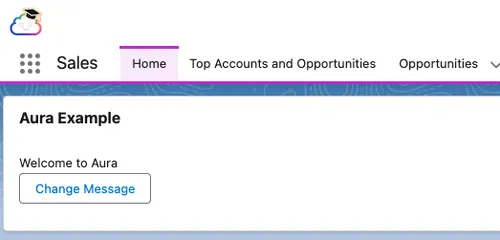
The important ideas are simple: <aura:attribute> defines state, {!v.message} reads it, and cmp.set("v.message", ...) updates it.
For hands-on practice beyond this first build, the Quick Start: Aura Components Trailhead project walks you through an Aura component, its Apex controller, data retrieval, and rendering in a short practical build.
With a full Aura component built end to end, the rest of this guide slows down and takes the pieces one at a time. The next few sections look at each building block on its own, such as attributes and expressions, base components, controllers and helpers, and events, so that when you open real Aura code, you can recognise each part and know what it is responsible for. You do not need to memorise them; the goal is to know what you are looking at and where to make a change safely.
🔤 Attributes and Expressions
Section titled “🔤 Attributes and Expressions”Before going further, it helps to be precise about what an attribute actually is. An attribute is a named, typed variable declared on a component that holds a piece of its state: a message, a count, a flag, a record, or a list. You already used one in the first build (message); this section unpacks how they work.
Attributes are how a component remembers values between interactions. You declare each one with <aura:attribute>, giving it a name, a type, and an optional default:
<aura:attribute name="message" type="String" default="Hello Aura" /><aura:attribute name="count" type="Integer" default="0" /><aura:attribute name="isEnabled" type="Boolean" default="true" />To read or write an attribute you go through a value provider: a prefix that tells Aura where a value comes from. The two you will use constantly are v (the component’s own view, meaning its attributes) and c (its client-side controller, which is why button handlers look like {!c.handleClick}). For attributes you always use v:
{!v.message}displays the current value in markup.cmp.get("v.message")reads the attribute’s current value from the component. You call it from your controller or helper code, wherecmpis the component reference Aura passes into every handler function.cmp.set("v.message", "New Value")updates it, which re-renders any markup bound to it.
↔️ One-Way vs Two-Way Binding (Practical View)
Section titled “↔️ One-Way vs Two-Way Binding (Practical View)”“Binding” just means connecting an attribute to your markup with an expression like {!v.message}. The thing to understand is which way the data flows.
One-way (display only). When you only show an attribute, data flows in a single direction: from the attribute to the screen. If your controller changes the attribute with cmp.set("v.message", ...), the display updates to match. The user cannot change the value just by looking at it.
<!-- Shows the value; there is nothing here for the user to edit --><p>{!v.message}</p>Two-way (inputs). When you bind an attribute to an input component such as lightning:input, data flows both ways. The attribute fills the field, and when the user types, Aura writes the new text straight back into the attribute for you, with no controller code required. Anything else bound to that same attribute then updates to match.
<!-- Typing in here updates v.message... --><lightning:input label="Message" value="{!v.message}" />
<!-- ...and this stays in sync, because it is bound to the same attribute --><p>You typed: {!v.message}</p>
The takeaway: Aura keeps the screen in sync with an attribute’s value automatically whenever that value changes, which is what makes input-bound attributes feel “reactive”. But Aura does not respond to everything on its own the way some modern frameworks do. Most of your component’s behaviour still happens because you wrote explicit controller logic to make it happen.
🌩️ Base Components
Section titled “🌩️ Base Components”A base component is a ready-made building block that Salesforce ships with the platform; you use one by dropping its tag into your markup. You have already used three in this guide without dwelling on them: lightning:card, lightning:input, and lightning:button. They live in the lightning: namespace, and there are dozens more for things like tables, menus, icons, and form fields.
The point of base components is that you do not build or style common UI from scratch. Each one arrives with Lightning Design System (SLDS) styling, built-in accessibility, and standard behaviour already handled, so you write less markup and less CSS, and your component looks and behaves like the rest of Lightning automatically.
<aura:component>    <aura:attribute name="message" type="String" default="Hello Aura" />
    <lightning:card title="Greeting">        <div class="slds-p-around_medium">            <lightning:input label="Message" value="{!v.message}" />            <lightning:button label="Save" variant="brand" onclick="{!c.handleClick}" />        </div>    </lightning:card></aura:component>
Use base components wherever they fit. They keep the UI aligned with the rest of Lightning and make later migration easier.
🧩 Controllers and Helpers
Section titled “🧩 Controllers and Helpers”Two files in the bundle hold a component’s JavaScript: the controller and the helper. You already met the controller in the first build, it is the ...Controller.js file, and it holds the functions that run in response to something in the UI, such as the handleClick that fired when you pressed the button. Each of those functions receives the component reference (cmp), the event that triggered it, and the helper.
The helper (...Helper.js) is a companion file for logic you want to reuse or keep out of the controller. Think of it as a separation of jobs: the controller responds to events, and the helper does the actual work. That split matters as soon as more than one controller function needs the same logic. A common pattern is a thin controller that immediately hands off to the helper:
// helloAuraController.js — responds to the event({ handleClick: function(cmp, event, helper) { helper.updateMessage(cmp, "Button clicked"); }})// helloAuraHelper.js — does the work, and can be reused({ updateMessage: function(cmp, message) { cmp.set("v.message", message); }})Use the controller for event handling and the helper for anything you want to reuse. That keeps the code easier to scan, and it means shared logic lives in one place instead of being copied across controller functions.
📣 Events and Communication
Section titled “📣 Events and Communication”Components rarely live alone on a page; they need to tell each other when something has happened. In Aura they do that by firing and handling events. An event is a named signal a component sends (“the user picked a date”, “this row was selected”…) that other components can listen for and react to, without the sender needing a direct reference to the receiver. This event-driven design is one of the reasons Aura still matters as a bridge framework.
Aura gives you three mechanisms for this, and choosing the right one is most of the skill:
| Mechanism | What it is | How far it reaches |
|---|---|---|
| Component event | A signal a component fires that a component containing it handles | Up the containment hierarchy, from a child to a parent |
| Application event | A signal any component can fire and any other can listen for, with no direct relationship between them | Anywhere on the page. Powerful, but easy to misuse, so reach for it sparingly |
| Lightning Message Service (LMS) | A publish/subscribe channel for unrelated components, including ones built in different frameworks | Across the whole page, including between Aura, LWC, and Visualforce |
Use component events when you can. They are more local, easier to follow, and less likely to create accidental coupling.
A typical component-event flow looks like this:
- A child updates something.
- The child fires a component event.
- The parent handles it.
- The parent updates its own state.
For communication across unrelated parts of the page, especially where Aura and LWC coexist, consider Lightning Message Service rather than creating broad application-event coupling. Aura supports the core LMS publish/subscribe pattern, though the wider messaging and composition model is more capable in LWC-centric implementations.
💾 Working with Salesforce Data
Section titled “💾 Working with Salesforce Data”Most components exist to do something with data: show a record, let a user edit one, or run an action on the server. Aura gives you a ladder of options for this, and the skill is starting on the lowest rung that does the job rather than reaching for Apex out of habit.
For everyday record work, whether displaying or editing a single record and its fields, reach first for the base record components (lightning:recordForm, lightning:recordViewForm, lightning:recordEditForm) and Lightning Data Service (LDS), the platform’s built-in data layer. These load, save, and cache a record for you, and they respect the user’s field-level security and sharing automatically, with no Apex to write or secure. You only drop down to Apex when you need something they cannot do, such as a custom query, a multi-record transaction, or a calculation that has to run on the server.
Before any of that, though, a component placed on a record page needs to know which record it is looking at.
🪪 Record Page Context
Section titled “🪪 Record Page Context”A component does not get the record ID for free; you have to ask for it by implementing two interfaces:
flexipage:availableForRecordHomemakes the component available to drop onto a Lightning record page.force:hasRecordIdtells Salesforce to pass the current record’s ID into the component’srecordIdattribute whenever it runs in a record context.
With both in place, {!v.recordId} holds the ID of whatever record the page is showing — an Account ID on an Account page, a Case ID on a Case page, and so on:
<aura:component implements="flexipage:availableForRecordHome,force:hasRecordId"> <p>Current record ID: {!v.recordId}</p></aura:component>On its own that snippet only proves the wiring works. The point is to feed v.recordId into a record-aware component such as lightning:recordForm, which uses it to load and render the record for you:
<aura:component implements="flexipage:availableForRecordHome,force:hasRecordId"> <lightning:recordForm recordId="{!v.recordId}" objectApiName="Account" layoutType="Compact" mode="readonly" /></aura:component>A screenshot of how the component looks from the code above:
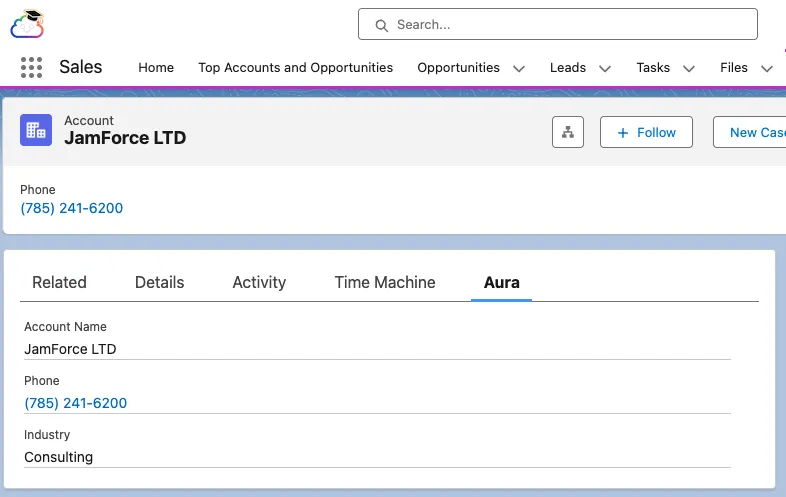
You never set the ID yourself; Salesforce provides it automatically because the component is sitting on a record page.
Put together, that is the pattern behind most record work in Aura. The page hands your component the record ID, you pass that ID to a record-aware base component, and the base component does the rest. It loads the data, renders the fields, saves edits, and enforces field-level security and sharing along the way. For viewing and editing records, you can often go a long way without writing any Apex at all. You only move up to Apex when you hit something those components cannot do.
⚙️ Calling Apex
Section titled “⚙️ Calling Apex”Use Apex when the UI needs something the standard record services do not cover, such as a custom query, a transactional action, or a server-side calculation. You expose a method to the component with @AuraEnabled, call it from your controller or helper, and handle the result in a callback.
public with sharing class AuraGreetingController { @AuraEnabled public static String getGreeting(String name) { return 'Hello, ' + name; }}({ loadGreeting: function(cmp, event, helper) { var action = cmp.get("c.getGreeting"); action.setParams({ name: cmp.get("v.message") });
action.setCallback(this, function(response) { var state = response.getState(); if (state === "SUCCESS") { cmp.set("v.message", response.getReturnValue()); } else { helper.updateMessage(cmp, "Something went wrong"); } });
$A.enqueueAction(action); }})Calling Apex from Aura is more ceremony than you might expect, so it is worth walking through line by line:
cmp.get("c.getGreeting")builds an action: a reference to the Apex method you want to run. Thecprefix here means the Apex (server-side) controller, not the client-side controller. Calling this does not contact the server yet; it just creates the action object.action.setParams({ name: ... })sets the arguments passed to the method. The key (name) must match the Apex parameter name.action.setCallback(this, function(response) { ... })registers the function Aura runs when the server responds. This is asynchronous: your code carries on, and the callback fires later.- Inside the callback,
response.getState()tells you how the call ended.response.getReturnValue()gives you whatever the Apex method returned (here, the greeting string). $A.enqueueAction(action)is what actually sends the request. Until you call it, nothing happens: Aura collects queued actions and dispatches them together for efficiency. Forgetting this line is the classic reason an Apex call “silently does nothing”.
When you call Apex, handle the callback state explicitly. In Aura, SUCCESS, INCOMPLETE, and ERROR all matter.
🧾 A Reusable Apex Call Pattern
Section titled “🧾 A Reusable Apex Call Pattern”The first example showed the call written inline, but you rarely make Apex calls one at a time. Most components make several, and repeating that setParams / setCallback / enqueueAction boilerplate (and remembering to handle every state each time) gets tedious and error-prone. A common fix is to write the pattern once as a reusable helper function, then call it for every server action. This version lives in the component’s helper:
({    runServerAction: function(cmp, actionName, params, onSuccess) {        var action = cmp.get(actionName);        action.setParams(params || {});
        action.setCallback(this, function(response) {            var state = response.getState();
            if (state === "SUCCESS") {                onSuccess(response.getReturnValue());                return;            }
            if (state === "INCOMPLETE") {                // Usually network interruption or client offline scenario                cmp.set("v.errorMessage", "Request incomplete. Check your network and try again.");                return;            }
            var errors = response.getError();            var message = (errors && errors[0] && errors[0].message)                ? errors[0].message                : "Unexpected server error.";            cmp.set("v.errorMessage", message);        });
        $A.enqueueAction(action);    }})
It takes four things: the component (cmp), the action name (such as "c.getGreeting"), the parameters to send, and an onSuccess function that runs only when the call succeeds. Each state is handled in one place: SUCCESS hands the returned value to your onSuccess function, INCOMPLETE shows a network message, and anything else is treated as an error. In that last case, response.getError() returns the list of errors the server sent back, so you can show a real message instead of a generic one.
A controller can then make a call without repeating any of the plumbing:
({ loadGreeting: function(cmp, event, helper) { helper.runServerAction(cmp, "c.getGreeting", { name: cmp.get("v.message") }, function(result) { cmp.set("v.message", result); }); }})This pattern is not about verbosity. It is about making sure no callback state disappears silently in production.
🗂️ Aura Data Options
Section titled “🗂️ Aura Data Options”When you are deciding how a component should get its data, work down this list and stop at the first option that fits:
| Need | Reach for |
|---|---|
| Display or edit a whole record quickly | lightning:recordForm |
| Custom record layout | lightning:recordViewForm or lightning:recordEditForm |
| Raw record data with custom rendering | force:recordData |
| Custom query or transaction | Apex with @AuraEnabled |
The first three options are built on Lightning Data Service, so they cache records and enforce field-level security and sharing for you. The Apex row does not: when you write your own server code, those protections become your responsibility. That is exactly where the next section picks up.
🔒 Security
Section titled “🔒 Security”Security in Aura has two sides, and they fail in different ways.
On the client, your component’s JavaScript runs inside a browser-level security layer that isolates it from the rest of the page and limits which browser APIs it can touch (Salesforce calls this sandboxing, unrelated to sandbox orgs). Newer orgs use Lightning Web Security (LWS); older ones use the earlier Lightning Locker (you may also see it called Locker Service). You get this protection for free, but it is why some third-party scripts behave differently inside a component than they do on a plain web page. Because the baseline differs from org to org, check which model an org uses rather than assuming, especially when you are maintaining older Aura heavy areas.
On the server, the bigger responsibility is yours, and how much of it depends on the API version of the Apex class. From the Summer ‘26 release, classes compiled at API version 67.0 or later default to user mode: queries and DML enforce the running user’s object permissions, field-level security, and sharing rules automatically, and a class with no sharing keyword defaults to with sharing. But classes on older API versions, which includes almost every @AuraEnabled controller behind legacy Aura components, still run in system mode, which means they can read and change any data regardless of the running user’s permissions. Until a class has been deliberately upgraded to API 67.0 or later, treat those checks as yours to make.
Practical rules:
- Prefer standard record components when they fit.
- Enforce CRUD and FLS in Apex when you write custom server logic.
- Validate user input before sending it to Apex or a query.
- Keep third-party JavaScript under control.
When you need custom Apex, treat security as code, not as a checklist item:
public with sharing class SecureAuraController {    @AuraEnabled(cacheable=true)    public static List<Account> loadAccounts(String searchTerm) {        if (!Schema.sObjectType.Account.isAccessible()) {            throw new AuraHandledException('You do not have access to Account data.');        }
        String likeTerm = '%' + (searchTerm == null ? '' : searchTerm.trim()) + '%';
        return [            SELECT Id, Name, Industry            FROM Account            WHERE Name LIKE :likeTerm            WITH USER_MODE            ORDER BY Name            LIMIT 50        ];    }}
Each part of that example is doing a specific security job, and it is worth knowing which is which:
with sharingmakes the class respect the running user’s record visibility: sharing rules, role hierarchy, and ownership.WITH USER_MODEenforces object and field-level security at query time, so the query cannot return data the user’s permissions do not grant.- The
isAccessible()check is technically redundant alongsideWITH USER_MODE, but it lets the component fail early with a clear message instead of a raw query exception. - The bind variable (
:likeTerm) prevents SOQL injection because the value is not parsed as query syntax. Do not escape a value before binding it: that changes legitimate search text containing apostrophes. If a truly dynamic query is unavoidable, preferDatabase.queryWithBinds; only concatenate values when you have applied the correct validation and escaping for that context.
Together, with sharing and WITH USER_MODE give you a safe default for user-facing Aura controllers.
🎨 Styling
Section titled “🎨 Styling”Aura components can carry their own CSS, but in practice the less you write, the easier the component is to maintain in future. The Salesforce Lightning Design System (SLDS) is the same styling system the platform itself uses, so most spacing, layout, and visual problems are solved before you write a selector. Lean on SLDS utility classes and base components first, and keep custom CSS small and scoped: every bespoke rule is something to maintain now and to migrate when the component eventually moves to LWC.
Good habits:
- Use
lightning:base components when possible. - Keep CSS component specific.
- Avoid rebuilding what SLDS already handles well.
🎯 Practical Styling Strategy
Section titled “🎯 Practical Styling Strategy”| Situation | Preferred Approach | Why |
|---|---|---|
| Spacing, alignment, visibility | SLDS utility classes (slds-m-around_small, slds-grid) | Fast, consistent, and upgrade-friendly |
| Common inputs and buttons | lightning: base components | Built-in accessibility and platform styling |
| One-off component visuals | Local Aura CSS file | Keeps custom styling scoped to the component |
| Reusable design language | Shared SLDS tokens and classes | Reduces style drift across pages |
When you do write Aura CSS, there is one framework-specific rule to know: every top-level selector must start with .THIS. It is not a class you define yourself. It is an Aura keyword that the framework replaces at runtime with a class named after your component, which is what stops your rules leaking into the rest of the page. Salesforce enforces it, so a CSS file without .THIS simply won’t save. Beyond that one rule, keep your selectors narrow and purposeful:
.THIS .cardHeader {    font-weight: 700;}
.THIS .warningText {    color: #8a6d3b;}
Be aware that .THIS is weaker protection than it looks. It scopes your styles to your component’s markup, but descendant selectors can still reach into child components nested inside it, because Aura has no Shadow DOM boundary the way LWC does. That is why broad selectors in legacy orgs are a common source of regressions during migration. A good rule: if a style change might affect other components, make your selector more specific before merging.
♿ Accessibility
Section titled “♿ Accessibility”Aura components should be built with accessibility in mind from the start. This is not a polish step for the end of a build: it decides whether users relying on keyboards or screen readers can do their jobs at all, and retrofitting accessibility into a finished component is much harder than building it in.
Good habits:
- Use Custom Labels for user-facing text that may need translation or central management.
- Prefer
lightning:base components where possible. - Always provide labels for inputs.
- Do not remove ARIA attributes from copied or customised markup. ARIA (Accessible Rich Internet Applications) attributes, such as
aria-label, are standard HTML attributes that tell assistive technologies what an element is and what state it is in, and base components rely on them to announce the UI correctly. - Test keyboard behaviour, focus order, and visible error states.
- Retest accessibility when DOM state changes.
✅ Accessibility Checks That Catch Real Issues
Section titled “✅ Accessibility Checks That Catch Real Issues”| Check | What to Verify | Common Failure Mode |
|---|---|---|
| Keyboard navigation | Users can tab through controls in logical order | Focus gets trapped in modal or custom menu |
| Input labeling | Every input has a visible or programmatic label | Placeholder text is used as label |
| Error feedback | Validation errors are visible and announced | Error only shown by color |
| Dynamic updates | Important state changes are announced clearly | Screen reader misses post-save status |
For dynamic UI, test both the “happy path” and failure path with keyboard only. Aura pages that pass mouse based checks can still fail basic assistive technology expectations.
♻️ Lifecycle and Rendering
Section titled “♻️ Lifecycle and Rendering”An Aura component is not simply placed on the page once and left alone. The framework walks every component through the same series of stages: it is created, rendered onto the page, rerendered whenever its state changes, and removed when it is no longer needed. Each stage is a place your code can run, so knowing the stages tells you where setup work belongs (when the component is created), where cleanup belongs (when it is removed), and where to look first when a component misbehaves as a page loads.
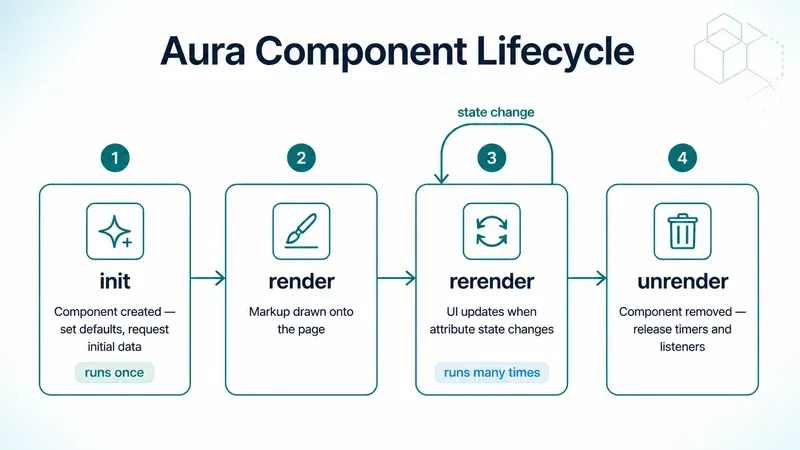
init is the most useful starting point when a component needs data or setup work as soon as it loads.
You usually wire this with aura:handler in markup:
<aura:component>    <aura:handler name="init" value="{!this}" action="{!c.doInit}" />    <aura:attribute name="message" type="String" default="Loading..." />
    <lightning:card title="Lifecycle Example">        <div class="slds-p-around_medium">{!v.message}</div>    </lightning:card></aura:component>
({ doInit: function(cmp, event, helper) { cmp.set("v.message", "Component initialized"); }})Use init for safe startup tasks like loading defaults, requesting initial data, or validating required context. The init handler runs once per component instantiation.
🧭 Lifecycle Rules of Thumb
Section titled “🧭 Lifecycle Rules of Thumb”- Put business logic in helpers or Apex and not in renderer overrides.
- Use
initonce for setup; don’t call it to trigger UI refreshes. - Treat
rerenderas high-frequency: keep it cheap and side-effect free. - Clean up timers and event listeners in
unrenderto prevent memory leaks.
⚡ Performance and Debugging
Section titled “⚡ Performance and Debugging”Aura is not inherently slow, but it becomes heavy quickly when common patterns are misused. These are the most impactful things to keep in mind:
- Avoid unnecessary server trips. Every
$A.enqueueActioncall has latency cost; batch or cache where you can. - Use storable actions for read-only data so Aura can serve them from client-side cache.
- Keep UI only state in the browser and don’t round-trip to the server for data the component already holds.
- Split large bundles into smaller components to reduce initial rendering cost.
- Prefer component events over application events as application events fan out to every listener in the page, which adds overhead proportional to page complexity.
- Aura server calls are callback-based (
$A.enqueueAction); there is no native async/await model, so plan your callback chains carefully to avoid nested callback complexity.
🐞 Debug Mode vs Performance Testing
Section titled “🐞 Debug Mode vs Performance Testing”Debug Mode changes how the Aura framework is served to the browser — it does not change how your code runs. With it enabled:
- JavaScript is unminified — stack traces and variable names are readable instead of mangled.
- Error messages include more detail — framework errors say what failed and where, rather than a generic “Action failed” message.
- Page load is slower — the unminified payload is significantly larger, so performance degrades noticeably.
- Performance stats are surfaced — EPT (Experienced Page Time), ART (Action Response Time), and page load metrics are shown in the browser, giving you timing data to work with during investigation.
- A banner appears — a visible indicator is shown in the UI when Debug Mode is active, so it is obvious when it is on.

To enable Debug Mode:
- Go to Setup → in Quick Find, type
Debug Mode. - Select Lightning Components Debug Mode.
- Check the box next to the users who need it (it is per-user, not org-wide).
- Click Enable — it takes effect immediately, no deploy needed.
Disable it the same way when you are done.
- Enable Debug Mode when diagnosing behaviour or JavaScript errors.
- Disable Debug Mode when validating realistic page performance.
- Do not use Debug Mode timings as your production performance baseline.
For performance checks, combine browser DevTools (network and scripting cost) with Lightning Inspector profiling where available.
🪵 Practical Debugging Workflow
Section titled “🪵 Practical Debugging Workflow”When an Aura component fails, work through these checks in order:
- Browser console: JavaScript errors, and confirm your callback is checking
state === "SUCCESS"before accessing the response. - Network tab: Confirm Apex requests fire and return expected payloads.
- Apex debug logs: Inspect server-side exceptions, governor limit hits, and SOQL behaviour.
- Markup and bindings: Verify
{!v.attributeName}spelling matches the<aura:attribute>definition exactly, silent failures here are common. - Permissions: Re-check object, field, and sharing access before assuming the code is wrong.
Once you’ve identified something is broken, narrow down which layer owns it (markup, client controller, helper, Apex, or permissions) and isolate there before changing anything. Changing multiple layers at once makes root-cause analysis much harder.
🧪 Testing Aura Components
Section titled “🧪 Testing Aura Components”Testing matters doubly for Aura because most of it is legacy code. You are rarely proving brand new behaviour; you are building a safety net around behaviour the business already depends on, so that maintenance and migration work can proceed without quiet regressions. For Aura, test at three levels:
- Apex unit tests for server-side controllers.
- JavaScript/component tests where appropriate.
- Browser or end-to-end tests for critical user journeys.
While LWC has Jest-based testing for UI code, in Aura, there is no equivalent official Jest model. Prioritise Apex coverage for server-side logic, then integration and end-to-end tests around the critical business flows the component supports.
🔎 Practical Test Sequence for Legacy Aura
Section titled “🔎 Practical Test Sequence for Legacy Aura”- Apex security first — sharing, CRUD, FLS, and negative cases. Verify correct records are returned for the right user context before testing anything in the UI.
- Component behaviour next — attribute updates, callback error handling, and conditional rendering. Assert user-visible outcomes after callbacks, not just server return values.
- End-to-end business outcomes last — user permissions, records, automation, and page interactions. Confirm the user can complete the key path without regression.
⚠️ Common Testing Gaps
Section titled “⚠️ Common Testing Gaps”| Gap | Risk Introduced | Better Approach |
|---|---|---|
| Only testing happy paths | Production failures on permission or data edge cases | Add negative tests for missing access and empty data |
| Asserting only server return values | UI regressions go unnoticed | Assert user-visible outcomes after callbacks |
| Ignoring profile/permission differences | Works for admin, fails for business users | Run critical tests across representative user contexts |
For legacy Aura heavy orgs, prioritise tests around high-risk flows (revenue-impacting pages, service console tools, and automation launch points) before broad refactors.
🔄 Migration Mindset
Section titled “🔄 Migration Mindset”At some point, most orgs with significant Aura investment will move toward LWC, either incrementally as components are touched, or more deliberately as part of a modernisation effort. Migration in this context means taking an existing Aura component and rebuilding it as a Lightning Web Component, replacing Aura-specific patterns with LWC equivalents while keeping the same user facing behaviour.
This is not just syntax conversion. It is a shift from Aura’s event-driven model to LWC’s standards-based component model, and the two are different enough that a direct port often misses the opportunity to simplify.
Migrating components to LWC improves long-term maintainability, reduces the gap between your code and Salesforce’s current investment, and makes future development faster. Salesforce’s official migration guide covers the mapping in detail; the core equivalences are:
| Aura Concept | LWC Equivalent |
|---|---|
aura:attribute | Reactive component property |
| Client-side controller/helper | Component JavaScript and supporting logic |
| Component event | CustomEvent dispatched to the parent |
| Application event | Lightning Message Service or a pub/sub module |
lightning: base components | LWC base components |
Apex action via cmp.get("c.method") | Same @AuraEnabled method, called imperatively or with @wire |
The best migration approach is usually:
- Keep the feature working.
- Identify the smallest stable slice.
- Rebuild that slice in LWC.
- Wrap the LWC in Aura only if the surrounding container still requires it.
That last step is simpler than it sounds: an Aura wrapper hosts an LWC like any other element. It sets the LWC’s @api properties as attributes and listens for the LWC’s events with the on<event> attribute, reading the payload from event.detail. This is the one place Aura uses on<event> handlers, because a nested LWC fires standard DOM events rather than Aura’s own component events (which a parent handles with <aura:handler>, as the capstone below shows). The Coexistence guide works through that boundary with an example.
🚧 Common Migration Pitfalls
Section titled “🚧 Common Migration Pitfalls”- Rewriting everything at once instead of shipping in slices.
- Porting Aura events directly without revisiting communication design.
- Migrating UI code but leaving insecure or over-coupled Apex untouched.
- Skipping parity tests for page behaviour, permissions, and edge-case data.
Treat migration as modernisation, not translation.
Some Aura features, such as application event heavy architectures and certain legacy interfaces, do not map directly to LWC one-for-one. Plan redesign work where needed instead of forcing strict parity.
🧵 Capstone Build: Greeting Card with Child Component and Event
Section titled “🧵 Capstone Build: Greeting Card with Child Component and Event”This capstone brings together everything the guide has covered: attributes for state, a child component, a component event, and a parent that listens and responds. You will build a greeting card where the parent displays a message, the child collects a name, and clicking a button in the child updates the text shown by the parent.
The build is three pieces of metadata. The names must match exactly, because the c: references in the markup resolve by name:
- An event named
GreetingChangeEvent— the message contract between child and parent. - A child component named
childGreetingInput— collects the name and fires the event. - A parent component named
greetingCard— renders the child, handles the event, and shows the greeting.
Build them in that order. The child registers the event and the parent references the child, so creating the event first means each save resolves cleanly.
📨 Step 1: The Event
Section titled “📨 Step 1: The Event”The event is its own piece of metadata: a small definition file that declares the event type and the data it carries.
Create it in VS Code with SFDX: Create Lightning Event (or in Developer Console via File → New → Lightning Event) and name it GreetingChangeEvent. Replace the contents of GreetingChangeEvent.evt with:
<aura:event type="COMPONENT"> <aura:attribute name="message" type="String" /></aura:event>🧒 Step 2: The Child Component
Section titled “🧒 Step 2: The Child Component”Create a component named childGreetingInput (SFDX: Create Lightning Component, as in the Hello Aura build). It holds the name in an attribute, and the button’s controller action fires GreetingChangeEvent with a message built from the current input value.
childGreetingInput.cmp:
<aura:component>    <aura:attribute name="name" type="String" default="Aura developer" />    <aura:registerEvent name="greetingchange" type="c:GreetingChangeEvent" />
<div class="slds-grid slds-gutters"> <div class="slds-col"> <lightning:input label="Name" value="{!v.name}" /> </div> <div class="slds-col slds-align-bottom"> <lightning:button label="Update Greeting" variant="brand" onclick="{!c.fireGreetingChange}" /> </div> </div></aura:component>childGreetingInputController.js:
({ fireGreetingChange: function(cmp, event, helper) { var greetingEvent = cmp.getEvent("greetingchange"); greetingEvent.setParams({ message: "Hello, " + cmp.get("v.name") }); greetingEvent.fire(); }})👨👩👧 Step 3: The Parent Component
Section titled “👨👩👧 Step 3: The Parent Component”Create a component named greetingCard. It holds the greeting in an attribute, renders the child inside a card, and declares a handler so it reacts when the child fires the event. The implements attribute is what lets you drop it onto a Lightning page in the next step.
greetingCard.cmp:
<aura:component implements="flexipage:availableForAllPageTypes" access="global">    <aura:attribute name="greeting" type="String" default="Welcome" />    <aura:handler name="greetingchange" event="c:GreetingChangeEvent" action="{!c.handleGreetingChange}" />
<lightning:card title="Greeting Card"> <div class="slds-p-around_medium"> <p>{!v.greeting}</p> <c:childGreetingInput /> </div> </lightning:card></aura:component>greetingCardController.js:
({ handleGreetingChange: function(cmp, event, helper) { cmp.set("v.greeting", event.getParam("message")); }})Notice how the parent listens with <aura:handler> rather than an on<event> attribute. Aura has no onGreetingChange-style shorthand for component events; that pattern belongs to LWC. The handler’s name must match the name the child uses in <aura:registerEvent>, which is how Aura wires the two components together.
🚀 Deploy and Test
Section titled “🚀 Deploy and Test”- If you built in VS Code, deploy all three bundles:
sf project deploy start --source-dir force-app/main/default/aura. If you built in Developer Console, there is nothing to deploy as long as you have saved each step, the save already updated the org. - In Lightning App Builder, edit an App or Home page, drag
greetingCardonto the canvas, then save and activate. - Open the page. The card should show Welcome, the attribute’s default value.
- Type a name and click Update Greeting. The text changes to “Hello, <name>”: the child fired the event, and the parent handled it.
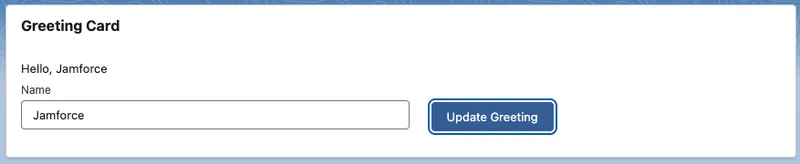
If the greeting does not update, the usual suspects are a handler name that does not match the child’s registerEvent name, or the event saved under a different name than GreetingChangeEvent. The browser console will show you which reference failed to resolve, the same first step as the debugging workflow above.
This capstone shows the key ideas in one place: state, markup, a client-side controller, an event, and a parent responding to a child action.
🏁 Summary and Next Steps
Section titled “🏁 Summary and Next Steps”Aura is the client-side component model that helped define Salesforce Lightning. It is not the default starting point for new UI today, but it is still part of the platform you will encounter in real orgs, especially in long-lived implementations and migration work.
The main things to remember are:
- Aura components are bundles, not single files.
- Attributes hold component state.
- Controllers and helpers handle browser interactions.
- Events are central to component communication.
- Apex is still available when UI logic needs the server.
- Security and data access still need deliberate design.
- Callback state handling and debugging workflow are critical in production Aura support.
- LWC is the preferred direction for new work, but Aura remains relevant for maintenance and transition.
Where to go next: The next article in the series moves fully into Lightning Web Components, the modern, standards-based framework that Salesforce recommends for new UI work. With Visualforce and Aura behind you, you will have the full context for why LWC looks and behaves the way it does.