Salesforce Fundamentals: Part 3 - Data Model Foundations

Every useful Salesforce org has an architecture underneath the screens users click through each day. That architecture is the data model: the objects you create, the fields you trust, and the relationships that connect business processes together.
In practice, weak data model decisions show up everywhere else. A custom object created where a standard one would do means losing built-in features and spending months rebuilding behaviour you never needed to write. These are patterns I encounter regularly on real projects, and they are almost always harder to fix once automation, integrations, and user workflows have grown around them.
By now, you have covered the platform basics, users and licencing, and access foundations. This chapter moves into the structure that makes the rest of Salesforce work. By the end of this article, you will understand how to choose the right object types, select robust field types, and design relationships that scale. These choices affect reporting, automation, security design, and future integrations long before a project reaches production. To make this practical, we’ll look at these concepts through the lens of a common business requirement: a Project Tracking app.
🧱 Understanding the Salesforce Data Model
Section titled “🧱 Understanding the Salesforce Data Model”Salesforce exposes a relational data model through platform services, security, automation, APIs, and user interfaces. The data model defines how information is structured, stored, and connected, building on core concepts taught in the official Data Modeling Trailhead module.
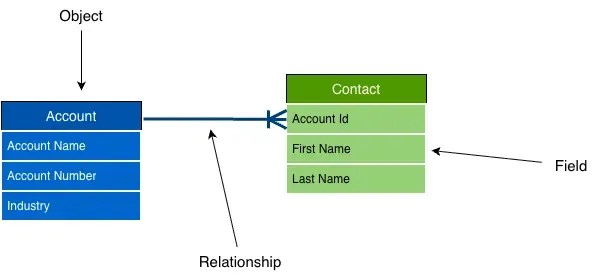
Salesforce’s model is built around three elements. Think of it like a relational database, but abstracted for business users:
- Objects are the “tables” that store records (like an Excel tab for Projects).
- Fields are the “columns” that store individual values (like the Project Status column).
- Relationships are the links between records on different objects (how a Project links back to a client Account).
When this model is designed well, reporting becomes cleaner, automation is more reliable, and user experience improves.
🗂️ Objects
Section titled “🗂️ Objects”Objects represent business entities (for example Accounts, Contacts, Cases, or your own custom entities).
Standard objects
Section titled “Standard objects”Standard objects are provided by Salesforce out of the box. They include predefined fields, relationships, and behaviour for common CRM processes.
Custom objects
Section titled “Custom objects”Custom objects model data that standard objects do not cover. They use API names ending in __c (for example Project__c), while the UI label remains human-friendly for end users.
Standard vs custom: when to choose which
Section titled “Standard vs custom: when to choose which”Most data model mistakes happen here: creating custom objects when standard ones would do, or forcing business data onto standard objects with dozens of custom fields and awkward workarounds. In my experience auditing orgs, the single most expensive technical debt often comes from rebuilding standard functionality on a custom object because a team didn’t want to work around one or two standard limitations.
Prefer standard objects when they reasonably fit your use case. You get built-in reporting, platform features, and compatibility with Salesforce clouds and packages out of the box. Standard objects also ship with relationships and behaviour you would otherwise rebuild yourself. Activities on Accounts, Cases linked to Contacts, and Opportunities on Accounts are examples of features you do not get for free on a custom object.
Use custom objects when your data model does not map cleanly to a standard object, or when stretching a standard object would require excessive workarounds (duplicate fields, fake record types, or unrelated processes crammed onto one entity).
Before creating a custom object, always check whether a standard object can be extended instead with custom fields, record types, or related objects. If the answer is “almost, but not quite,” ask whether the gap is worth losing standard features and long-term maintainability.
🏷️ Fields
Section titled “🏷️ Fields”Fields are the data points inside an object. Every object includes standard system fields, and you can add custom fields for business-specific needs.
Standard fields
Section titled “Standard fields”Common examples include CreatedDate, LastModifiedDate, and OwnerId. These aren’t just labels, they are the foundation of audit trails, system troubleshooting, and security logic. For example, OwnerId directly ties into the sharing model to determine who can see or edit a record.
Custom fields
Section titled “Custom fields”Custom fields let you capture org-specific values, such as a project’s Phase__c or Budget__c. A common trap is using the wrong field type out of convenience. For instance, storing a project’s related department as a Text field instead of a Picklist. Later, when you try to run a report grouping projects by department, variations like “IT”, “I.T.”, and “Information Tech” will completely break your reporting.
Field data types
Section titled “Field data types”Choosing the right type is important for data quality, reporting, and long-term maintainability. The wrong field type can limit reporting, break integrations, or require costly refactoring later. For example, storing structured categories in a Text field instead of a Picklist, or storing related record IDs in Text instead of a Lookup relationship.
- Text / Number for straightforward values where free-form input or calculations are appropriate.
- Date / DateTime for time-based logic and reporting (avoid storing dates as Text; filters, formulas, and integrations will suffer).
- Picklist for controlled value sets where data quality matters. Prefer Picklists over Text when users should choose from a defined list; Text invites inconsistent spelling, typos, and reporting gaps.
- Lookup for relationships to other records. Prefer Lookup (or master-detail) over storing an ID in a Text field; Text IDs bypass validation, break when records are merged or deleted, and make reporting and automation harder.
- Formula for derived values that should not be edited manually.
- Auto Number for generated identifiers where a human-readable sequence is enough.
🔗 Relationships
Section titled “🔗 Relationships”Relationships define how records connect and how tightly they depend on one another.
Lookup relationship
Section titled “Lookup relationship”A loose link where the child record can exist without the parent.
Example: Linking a Project__c to a standard Contact (the Project Manager). The Project has its own lifecycle and ownership. If somebody tries to delete the Contact, the lookup’s deletion setting determines whether Salesforce clears the field or blocks the deletion.
When to use: Default to Lookup when records are related but have independent lifecycles, or when the child should not inherit ownership and sharing from the parent.
Master-detail relationship
Section titled “Master-detail relationship”A tight dependency. The child record is entirely dependent on the parent for its existence, ownership, and sharing behaviour.
Example: Linking Time_Entry__c records to a Project__c. If the Project is deleted, all its Time Entries are automatically deleted (cascade delete). You also gain the ability to create Roll-Up Summary fields on the Project (e.g., “Total Hours Logged”).
When to use: Only when the child record cannot logically exist without the parent, and when you specifically need roll-up summaries or inherited security.
The risk: Overusing master-detail creates rigid models. It forces child records to inherit the parent’s sharing settings, which can severely limit your security design later.
Many-to-many (junction object)
Section titled “Many-to-many (junction object)”Commonly implemented with a junction object that holds two master-detail relationships, linking two separate objects together. Lookup relationships can also model a junction when the records need independent ownership or lifecycles, but you then give up master-detail behaviour such as inherited sharing and native roll-up summaries.
Example: Linking Project__c and Employee__c. One project has many employees, and one employee works on many projects. You create a Project_Assignment__c junction object to connect them.
External relationships
Section titled “External relationships”Used with Salesforce Connect to reference data that stays outside Salesforce (like an external ERP system), displaying it as if it were a native related list.
🗺️ Visualising the model
Section titled “🗺️ Visualising the model”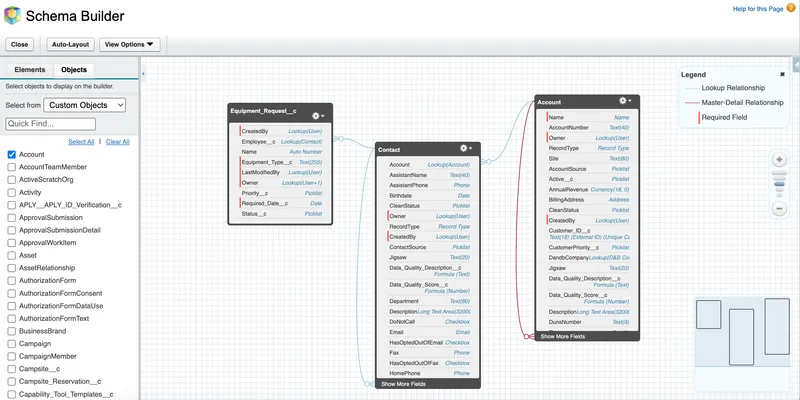
Schema Builder is a built-in tool that provides a dynamic ERD (Entity Relationship Diagram) of your org. Before building anything, use it or your own ERDs to validate that the structure reflects real business workflows. If you need to understand standard objects, the Salesforce Data Model Reference provides comprehensive ERDs for standard clouds.
When reviewing a schema, look for:
- Orphaned objects: Custom objects floating with no relationships to standard objects like Accounts or Contacts.
- Over-connected objects: An object with so many relationships it acts as a “god object”, which usually indicates a flawed design.
- Unexplained manual aggregation: Places where automation is maintaining totals that a native roll-up summary could handle. Review the relationship, but do not change it to master-detail until lifecycle, ownership, deletion, and sharing requirements support that tighter dependency.
🆔 Record IDs and namespaces
Section titled “🆔 Record IDs and namespaces”Two practical topics developers run into early:
- 15 vs 18 character IDs: Salesforce users can encounter 15-character, case-sensitive IDs in interface contexts. Integration and data work should standardise on the 18-character, case-insensitive form. The three-character suffix preserves the case information from the original ID. Why it matters: Spreadsheet comparisons and external systems often treat text as case-insensitive, so two 15-character IDs that differ only by letter case can be mistaken for the same value. The 18-character form avoids that ambiguity.
- Namespaces: managed packages prefix metadata (for example
billing__Invoice__c) to avoid naming collisions.
These details seem small, but they prevent subtle production issues.
🧾 A practical data-model decision record
Section titled “🧾 A practical data-model decision record”Before creating an object or a relationship that will be difficult to reverse, capture:
- Business concept and owner — what real thing or event does this represent, and who owns its definition?
- Standard capability considered — which standard object or platform feature was assessed, and why does it fit or fail?
- Lifecycle and ownership — can the record exist independently, who owns it, and what should happen when a parent is deleted?
- Security and reporting — who needs access, which reporting questions must the model answer, and will inherited sharing create a problem?
- Volume and integration — expected growth, external identifiers, data sources, and downstream consumers.
- Stable names — labels can change, but API names should remain clear enough for future builders to understand.
This does not need to become a large architecture document. A short record of the reasoning is enough to stop the same design debate being repeated after automation and integrations depend on the result.
⚠️ Common data model mistakes
Section titled “⚠️ Common data model mistakes”If you are moving from admin work toward development or architecture, these patterns show up repeatedly in orgs that feel “hard to maintain.” Spot them early and you save yourself months of rework. In real org reviews, I find reporting problems traced back to data model shortcuts made early: Text fields used where lookups were needed, duplicate custom objects for similar processes, or master-detail relationships added before security requirements were fully understood.
- Using Text fields instead of relationships breaks reporting, related lists, and data integrity. If two records belong together, model that with a lookup or master-detail, not a copied ID or name in a Text field.
- Overusing master-detail creates rigid models and accidental cascade deletes. Master-detail is powerful for roll-up summaries and shared ownership, but default to Lookup when the child should survive without the parent.
- Creating duplicate objects for similar concepts fragments reporting and confuses users. Two custom objects for nearly the same entity usually means inconsistent fields, duplicate automation, and dashboards that never quite align.
- Ignoring naming conventions builds technical debt into API names from day one. Clear, consistent names (for example
Project__c,Renewal_Score__c) make Flow, Apex, integrations, and metadata deployments easier for everyone who follows.
🎯 Final Thoughts
Section titled “🎯 Final Thoughts”A well designed data model is less about choosing the right object type and more about making decisions that stay correct as the org grows. The clearest sign of a strong model is that adding automation, reporting, or integration later requires minimal rework because the structure already reflects how the business actually operates.
From project experience, the orgs that become hard to maintain rarely start with a single, catastrophic design failure. Instead, they start with small, convenient shortcuts: a Text field instead of a Lookup here, a custom object that almost fits a standard one there, or API names chosen quickly and never revisited. Those decisions compound quietly. By the time the problems show up in broken reports or automation edge cases, the model is deeply embedded and expensive to change. Understanding these patterns now, before you build anything, is what separates a design that scales from one that creates years of technical debt.
🚀 Next steps
Section titled “🚀 Next steps”Now you’ll turn this structure into a working user experience. In Customisation & Automation, you’ll see how custom apps, Lightning pages, Object Manager, and Flow help you turn a well designed model into processes people can actually use every day. A strong model makes this step much faster, the customisation reflects the data rather than working around it.