Salesforce Fundamentals: Part 4 - Customisation & Automation

This is where Salesforce starts to feel less like a database and more like a system built around the way people actually work. For me, this is also where the platform starts to get much more interesting, because small design choices begin to have a very visible impact on the user experience. A good data model gives you structure, but customisation and automation turn that structure into screens, guided processes, and repeatable actions users can rely on every day.
In this chapter, you’ll move from “what data do we store?” to “how should people use it?” You’ll configure apps, shape object experiences, and introduce automation patterns that help the org scale without relying on manual follow-up, while staying grounded in strong data management practices.
🧰 Basic Customisation: Building Simple Apps and Objects
Section titled “🧰 Basic Customisation: Building Simple Apps and Objects”Salesforce is powerful because you can tailor it quickly with point-and-click tools.
- Custom Apps group tabs, objects, and pages by team workflow.
- Custom Objects capture business concepts not covered by standard CRM objects.
When done well, customisation reduces noise for users and helps teams work in one focused workspace.
⚙️ Core customisation tools
Section titled “⚙️ Core customisation tools”- Lightning App Builder for page layouts and app experiences.
- Object Manager for fields, validation rules, relationships, and metadata settings.
Together, these tools let admins and developers translate business requirements into maintainable configuration.
🧱 A practical build sequence
Section titled “🧱 A practical build sequence”- Clarify the process and required records.
- Model objects and fields.
- Configure layouts and app navigation.
- Add validation for key quality rules.
- Test with realistic user profiles.
🛠️ A Practical Example: Building an Equipment Request App
Section titled “🛠️ A Practical Example: Building an Equipment Request App”Let’s walk through a concrete example that shows how customisation and automation turn a manual process into a working solution.
Scenario: Your team needs a simple way to request laptops, monitors, or other equipment. Currently, people email their manager, who forwards requests to IT. Requests get lost, there’s no audit trail, and managers waste time tracking things down.
-
Create a custom object — Instead of forcing people to use the standard CRM objects, create a new object called Equipment Request with fields like:
- Text field:
Equipment Type(laptop, monitor, keyboard, and so on) - Picklist:
Priority(Standard, Urgent, Executive) - Lookup:
Employee(who’s requesting) - Date field:
Required Date - Status picklist:
New → In Review → Approved → Fulfilled → RejectedThis object captures exactly what the business needs, nothing more and nothing less.
- Text field:
-
Configure the app experience — Create a custom Equipment App that shows only the relevant items, such as Equipment Requests, Reports, and Dashboards. Inside the app, configure a Lightning page with:
- A list view showing all pending requests
- A record page layout with the key fields visible
- Reports or related information showing request history for each user Now users have a focused workspace and don’t get distracted by sales objects they never use.
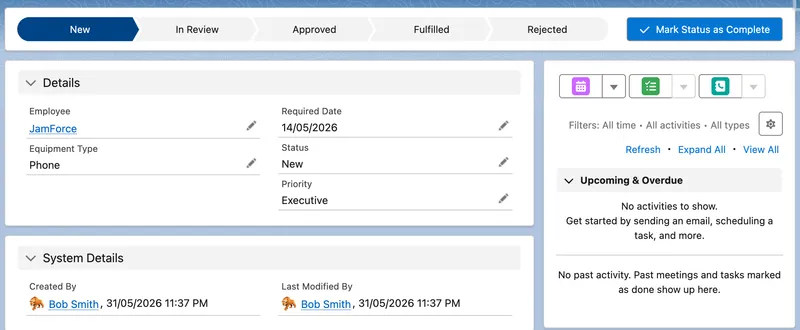
A focused custom app gives users a clearer workspace and makes the process easier to follow.
-
Add validation rules — Make sure data quality stays high with simple rules:
Required Datecan’t be in the past- An
Urgent Reasonfield is required whenPriorityisUrgent Equipment Typeis required before the record moves beyond theNewstatus These rules prevent bad data from entering the system and force users to think through their requests.
-
Add a governed approval — This is where the process becomes self-service. After confirming which approval capability is available in your edition:
- Use the requesting User’s
Managerfield to identify the intended approver, with a defined fallback when no manager is populated - Configure a standard Approval Process or a Flow Approval Process rather than treating an email notification as approval evidence
- Use record-triggered Flow to submit eligible requests automatically and handle supporting updates
- On approval, create a task for IT and move the request to
Approved - On rejection, capture the decision and return the request to the employee with the reason Now the process has a visible status, named decision owner, and audit trail instead of an email chain.
- Use the requesting User’s
-
Test with realistic users — Finally, test the app with representative personas and permission assignments:
- An employee who can create requests and view their own status
- A manager who can approve or reject requests for their team
- An IT administrator who can see all requests and update fulfilment status Each profile sees only what they need and nothing more.
🤖 Introduction to Automation
Section titled “🤖 Introduction to Automation”Automation is where Salesforce starts to multiply team productivity. Instead of relying on manual steps, you define rules and actions that run consistently in the background.
🌟 Why automation matters
Section titled “🌟 Why automation matters”- Consistency: processes run the same way every time.
- Speed: users do less repetitive data entry.
- Data quality: updates and checks happen automatically.
- Scale: operations grow without linear admin effort.
🧭 Core automation tools
Section titled “🧭 Core automation tools”Flow is Salesforce’s primary declarative automation tool, and the one you should prioritise learning deeply in Part 3 — Automation.
- Screen Flows for guided, user-driven processes.
- Record-Triggered Flows for save-time automation.
- Scheduled Flows for time-based jobs.
- Approval Processes for governed review paths.
- Legacy tools like Workflow Rules and Process Builder still appear in some existing orgs, but Salesforce ended support for them on 31 December 2025. Existing automations should be migrated to Flow.
🔮 Where this is heading
Section titled “🔮 Where this is heading”Salesforce continues to blend automation with AI-assisted workflows, including Agentforce action patterns that call Flow for data retrieval, updates, and orchestration.
🧭 Choosing Between Flow, Approval Processes, and Apex
Section titled “🧭 Choosing Between Flow, Approval Processes, and Apex”Not every automation belongs in Flow. Pick the right tool and your org stays easier to maintain. Pick the wrong one and you’ll fight the platform every time Salesforce releases a new feature.
🔄 When Flow is the right choice
Section titled “🔄 When Flow is the right choice”Flow handles most business automation without code. Start here when:
- You need to update records automatically after a save
- You want to guide users through a multi-step process with a screen
- You need scheduled actions like sending reminders or updating old records
- Your logic fits within Flow’s declarative capabilities (updates, creates, lookups, simple conditions)
Flow is Salesforce’s primary automation tool and the one you should invest in deeply. For many workflows, it’s the right first choice before you even think about code.
✅ When Approval Processes make more sense
Section titled “✅ When Approval Processes make more sense”Approval Processes are built specifically for governed review paths. Use them when:
- You need a formal, auditable approval chain
- Multiple people must approve in a specific order
- Approvers need to see a history of who approved what and when
- You want to lock records during the approval process
Salesforce now offers Flow Approval Processes for multi-stage, multi-user, and multi-system reviews, while established standard Approval Processes remain in use. Check edition support and choose the simplest option that provides the routing, audit history, delegation, and exception handling your process requires.
💻 Deciding whether you need Apex
Section titled “💻 Deciding whether you need Apex”Apex is one possible outcome, not the assumed destination. Use the table below to decide whether a requirement should stay in Flow, use a hybrid pattern, or move into Apex or middleware. Some rows deliberately keep the solution wholly or partly in Flow because code should only enter the design when it adds enough control, scale, or reliability to justify the additional testing, deployment, and specialist maintenance.
| Situation | Recommended starting point | Decision signal |
|---|---|---|
| Low automation density with clear, deterministic rules | Record-triggered Flow | Declarative logic is visible, quick to maintain, and bulkified by the platform when designed correctly |
| Moderate density with one or two complex operations | Flow with Invocable Apex | Flow can orchestrate the process while reusable code handles the part that needs stronger data structures or control |
| High automation density on one object | Assess an Apex trigger framework | A consolidated Apex entry point offers stronger ordering, reuse, and control, but requires engineering ownership and tests |
| High-volume or compute-intensive processing | Assess Apex, often with an asynchronous or batch pattern | Apex provides more control over efficient bulk processing, limits, failure handling, and transaction boundaries |
| Savepoints, rollback, partial-success DML, or sophisticated transaction handling | Apex | Flow does not expose the same transaction-control capabilities |
| A custom integration with non-trivial authentication, payload, retry, or error-handling needs | Assess Apex or middleware | The integration boundary and operating model matter more than a blanket “clicks before code” rule |
Read the table as an escalation path, not an Apex checklist. The useful question is not “Can Apex do this?” because it usually can. Ask whether code provides enough control, performance, or operational resilience to justify owning it for the life of the solution.
🎯 Final Thoughts
Section titled “🎯 Final Thoughts”For me, this is the point where Salesforce stops being a basic platform and starts becoming a system people rely on. It is also a part of Salesforce I find most interesting, because small design choices can have a huge effect on how people experience the platform day to day. A well designed app, a clear record page, or a thoughtfully built Flow can make everyday work faster, more consistent, and much less frustrating.
This is also where good design decisions start to show their value. If your object model is clear, your layouts are focused, and your automation reflects how the business actually operates, Salesforce feels intuitive. If those pieces are rushed or overcomplicated, users notice that too.
In practice, the best solutions are usually the ones that users barely have to think about. They fit the process, reduce manual effort, and give teams confidence that the data in Salesforce can be trusted.
🚀 Next steps
Section titled “🚀 Next steps”Once records are being captured properly and processes are running consistently, the next question is simple: what is all that activity telling you? That’s where reporting becomes essential.
In Reports & Dashboards, you’ll learn how to turn the data created by your apps and automations into useful insight. That means tracking performance, spotting issues earlier, and giving teams something more valuable than raw visibility.