Querying Data with SOQL & SOSL — Dev Fundamentals 3

In Part 2 — Apex Fundamentals, you met inline SOQL while learning Apex. You saw square-bracket queries drop rows straight into a variable, and you bound a value into a WHERE clause with a colon. Those snippets were enough to keep the Apex lesson moving, but they were not a complete mental model for reading and writing data.
SOQL (Salesforce Object Query Language) retrieves structured record data from an object and its defined relationships. SOSL (Salesforce Object Search Language) searches indexed text across fields and potentially unrelated objects. Both retrieve Salesforce data, but they solve different problems.
That distinction matters now, because the next chapter is about triggers. Every bulk-safe trigger you write depends on one habit: gather the record IDs you care about, then run one query to pull back the related data. If you cannot yet read a relationship-aware query or bind a collection of IDs, bulkification will feel like magic instead of a pattern you control.
This chapter turns those Part 2 snippets into practical query literacy. You will learn to choose the right retrieval model, run a query outside Apex to check its shape, bring it into code with bind variables, traverse Salesforce relationships, search across objects with SOSL, and apply the security and performance guardrails that keep queries safe at production scale. It is an applied developer-journey chapter, not a reference manual: it focuses on the patterns Part 4 uses immediately and points to dedicated guides and official Salesforce sources for syntax, limits, and version-specific behaviour.
🧭 SOQL or SOSL: Choose the Retrieval Model First
Section titled “🧭 SOQL or SOSL: Choose the Retrieval Model First”Before you write any syntax, decide what kind of problem you are solving. The short definitions from the introduction become a practical choice between two retrieval models.
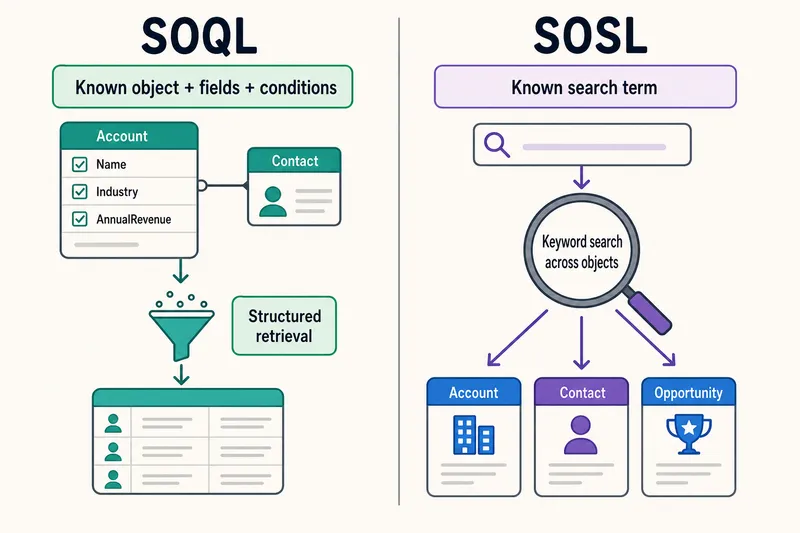
Choose SOQL when you know which object and fields you need and can describe the records using structured conditions. You start from one object, select the fields to return, filter with a precise WHERE clause, and traverse the relationships that are already defined between objects. Think of it as: “I know where the data lives, which fields I need, and the conditions the records must meet.”
Choose SOSL when you have a search term but may not know which object or searchable field contains the match. SOSL searches indexed text, email, phone, and name fields across one or more objects, including objects that are unrelated. Think of it as: “I know what I am looking for, but not necessarily where it lives.”
The visual keeps the core distinction in view: SOQL starts with known structure, while SOSL starts with a search term.
| Aspect | SOQL | SOSL |
|---|---|---|
| Starting point | One object (plus its defined relationships) | A search term across many objects |
| Best fit | Precise, structured retrieval | Keyword-based text search, often across objects |
| Relationships | Traverses defined lookup/master-detail paths | Can select some relationship fields on supported objects, but results are still per-object lists, not joined rows like SQL |
| Result shape in Apex | Usually List<YourObject> (or a single sObject); aggregate queries have specialised result types | List<List<SObject>> |
| Data freshness | Reads live database records | Reads the search index, which can lag slightly |
| Realistic use case | Retrieve open Opportunities for a set of known Account IDs | Search Accounts and Contacts for a company name a user typed |
A useful way to think about this is to watch for the word search, then ask what the user’s term needs to match against. If a term must be matched across unknown fields or several objects, that is usually SOSL. If you know the object and field, such as finding Accounts whose Name starts with a known value, a structured SOQL filter can be the clearer choice. Requirements such as “get the related records for these IDs” or “list records that meet these conditions” are SOQL.
Keep the official language reference nearby when you need to confirm current clause syntax, supported fields, or platform-specific behaviour:
🛠️ Run and Inspect a Query
Section titled “🛠️ Run and Inspect a Query”Before a query goes into Apex, it helps to run it on its own and check the shape of the results. A standalone query has no bind variables and no typed collection to worry about, so it is the fastest way to confirm your SELECT, FROM, and WHERE are correct.
The workflow here mirrors the tooling you set up in Part 1:
-
Draft the query in VS Code. The Salesforce Extension Pack includes SOQL Builder and
.soqlsupport, so you can build and run a query against a connected org without leaving the editor. -
Run a SOQL query from the CLI. Use Salesforce’s
sf data querycommand to execute a query against a target org:Terminal window sf data query --query "SELECT Id, Name, StageName FROM Opportunity WHERE IsClosed = false" --target-org my-org -
Run a SOSL search from the CLI. Later in this chapter you will use Salesforce’s
sf data searchcommand for text search:Terminal window sf data search --query "FIND {Acme} IN NAME FIELDS RETURNING Account(Id, Name)" --target-org my-org
Replace my-org with the alias or username of an authenticated org from Part 1. If you configured a default target org, --target-org is optional. The Developer Console Query Editor and the Salesforce Inspector browser extension are handy alternatives, but the CLI and VS Code keep everything in one place and version-controllable.
🧱 Build a Useful SOQL Query
Section titled “🧱 Build a Useful SOQL Query”Every SOQL query is built from a small set of clauses. Let’s grow one query in steps, using a realistic goal: list open Opportunities, showing the largest deals first.
Start with the two required clauses, SELECT (the fields you want) and FROM (the object):
SELECT Id, Name, Amount, StageName, CloseDateFROM OpportunityAdd a WHERE clause to filter. IsClosed is a standard boolean field on Opportunity, so we can exclude closed deals:
SELECT Id, Name, Amount, StageName, CloseDateFROM OpportunityWHERE IsClosed = falseAdd ORDER BY to sort (largest amount first) and LIMIT to cap how many rows come back:
SELECT Id, Name, Amount, StageName, CloseDateFROM OpportunityWHERE IsClosed = falseORDER BY Amount DESCLIMIT 50A few things worth calling out:
- API names, not labels. SOQL uses the API name of each object and field.
AmountandCloseDateare API names; a custom field would end in__c, such asDiscount_Rate__c. The label you see in the UI can differ from the API name. - Include
Idwhen code will process the results. If Apex is going to update these records or match them to others, you almost always want theId. ORDER BYdirection.ASC(the default) sorts smallest-to-largest or A-to-Z;DESCreverses it.
For the full treatment of these clauses, see the dedicated guides:
To practise the same progression in a Salesforce-managed learning environment, the SOQL for Admins module moves from basic clauses into Apex, relationships, bind variables, and aggregates:
🔗 Bring SOQL into Apex with Bind Variables
Section titled “🔗 Bring SOQL into Apex with Bind Variables”A standalone query proves the shape is right. Inside Apex, two things change: the results land in a typed collection, and your filter values come from bind variables instead of literals.
Assign a multi-row query to a List. A list happily holds zero, one, or many records, so it never throws when nothing matches:
List<Opportunity> openOpportunities = [ SELECT Id, Name, Amount, StageName, CloseDate FROM Opportunity WHERE IsClosed = false ORDER BY Amount DESC];Assigning a query to a single sObject variable is riskier: if the query returns zero rows Apex throws a QueryException, and if it returns more than one it also throws. A list avoids both problems, which is why it is the safer default when you are unsure how many rows will come back.
To filter on a value from elsewhere in your code, prefix an in-scope Apex variable with a colon (:). This is a bind variable:
String targetStage = 'Negotiation';
List<Opportunity> negotiations = [    SELECT Id, Name, Amount    FROM Opportunity    WHERE StageName = :targetStage];
The pattern that matters most for the next chapter is binding a collection. Inside a method that has already received a populated Set<Id> accountIds parameter, pass that set into an IN clause and Apex expands it into the query automatically:
// accountIds is a Set<Id> parameter supplied by the caller.List<Opportunity> openOpportunities = [ SELECT Id, Name, AccountId, StageName, Amount, CloseDate FROM Opportunity WHERE AccountId IN :accountIds AND IsClosed = false WITH USER_MODE ORDER BY CloseDate ASC];This single query retrieves the open Opportunities for every Account in the set at once. Whether the set holds one ID or two hundred, it is still one query. That is the “Query” step of the Collect → Query → Process pattern you will apply inside triggers in Part 4.
For values, do not build query text by concatenating strings. Bind variables keep the value separate from the query text and protect against SOQL injection, because the platform treats a bound value as data rather than query syntax.
🕸️ Traverse Salesforce Relationships
Section titled “🕸️ Traverse Salesforce Relationships”Real data is connected: Contacts belong to Accounts, Opportunities have Owners. SOQL lets you pull related data in a single query by following the relationships defined in your data model. The lookup or master-detail field is what makes the path possible; there is no arbitrary join.
There are two directions, and they use different syntax.
Child-to-parent (going “up” to a related record) uses dot notation. From a Contact you can reach its parent Account’s fields directly:
List<Contact> contacts = [ SELECT Id, LastName, Account.Name, Account.Industry FROM Contact WHERE Account.Industry = 'Technology'];Parent-to-child (going “down” to related records) uses a subquery in the SELECT list. From an Account you can pull its related Contacts:
List<Account> accounts = [ SELECT Id, Name, (SELECT Id, LastName FROM Contacts) FROM Account WHERE Industry = 'Technology'];| Direction | Syntax | Relationship name | Result shape |
|---|---|---|---|
| Child to parent | Account.Name (dot notation) | The lookup field’s relationship name | Fields on each returned record |
| Parent to child | (SELECT ... FROM Contacts) (subquery) | The child relationship API name (often plural) | A nested list on each parent record |
The relationship name is not always the object name. For standard relationships, the child relationship name is often plural, such as Contacts on Account. For custom relationships, the parent and child relationship API names are defined in metadata and commonly end in __r, such as Property__r.Name or Invoices__r. Do not infer a relationship name from its label: confirm it in Setup or an object describe result if a relationship query will not compile.
For the complete treatment, including deeper traversal and the limits on how many levels you can cross, see the relationships guide:
🔎 Search Across Objects with SOSL
Section titled “🔎 Search Across Objects with SOSL”When the requirement is “search for what the user typed” across unknown fields or objects, reach for SOSL. Think of the global search box at the top of Salesforce: one term, matched across many objects at once. SOSL reads from the search index rather than the live tables, which is why a brand-new record might not appear immediately after it is created or updated. For example, a record created moments ago can be absent from SOSL results while a SOQL query against the live database can retrieve it. If the requirement names one object and one field, prefer a structured SOQL filter instead.
In the inline Apex SOSL statement below, FIND supplies the search term and field group, while RETURNING names the objects and fields to bring back:
List<List<SObject>> searchResults = [    FIND 'Acme*' IN NAME FIELDS    RETURNING Account(Id, Name), Contact(Id, Name, Email)    WITH USER_MODE];
// The inner lists follow the RETURNING order:List<Account> foundAccounts = (List<Account>) searchResults[0];List<Contact> foundContacts = (List<Contact>) searchResults[1];
Notice the return type: List<List<SObject>>, a list of lists. A single SOSL search can span multiple objects, so each object’s matches come back as a separate inner list, in the same order as the RETURNING clause. Here searchResults[0] is the Account matches and searchResults[1] is the Contact matches. If one listed object has no matches, Salesforce still returns an empty inner list in that position.
The same search runs from the CLI with sf data search:
sf data search --query "FIND {Acme*} IN NAME FIELDS RETURNING Account(Id, Name), Contact(Id, Name, Email)" --target-org my-orgWith WITH USER_MODE, SOSL respects the running user’s record sharing, object permissions, and field-level security. For the full syntax, search scopes, and limits, start with the SOSL introduction and follow the series from there:
📊 Recognise Aggregates and Date Logic
Section titled “📊 Recognise Aggregates and Date Logic”Two SOQL capabilities come up often enough that you should recognise them, even though their full detail lives in the dedicated guides.
Aggregates summarise data instead of returning individual rows. Counting or totalling in the database usually avoids transferring every matching record into Apex and looping there. The example uses COUNT(Id), a clear default for counting persisted records because every stored Salesforce record has an Id:
List<AggregateResult> results = [ SELECT StageName, COUNT(Id) dealCount FROM Opportunity GROUP BY StageName];dealCount is an alias for the value returned by COUNT(Id). SOQL does not use the AS keyword, and field aliases are limited to aggregate expressions such as COUNT, SUM, AVG, MIN, and MAX; you cannot rename ordinary fields in a standard SOQL query.
In Apex, retrieve the grouped field using its API name and the aggregate value using the alias:
for (AggregateResult result : results) { String stageName = (String) result.get('StageName'); Integer dealCount = (Integer) result.get('dealCount');}A descriptive alias makes the result easier to read and avoids relying on Salesforce-generated expression names such as expr0.
Date literals let you filter by relative time without hard-coding dates, which keeps queries readable and correct as time passes:
List<Opportunity> closingSoon = [ SELECT Id, Name, CloseDate FROM Opportunity WHERE CloseDate = THIS_MONTH];These are signposts, not the full story. When you need grouping functions, HAVING, or the complete set of date literals and functions, use the dedicated guides:
🛡️ Query Safely at Production Scale
Section titled “🛡️ Query Safely at Production Scale”A query that works on ten records in a sandbox can fail on ten million in production. These guardrails keep your queries safe as data and usage grow.
| Guardrail | Why it matters |
|---|---|
| Query once for the whole collection | Keep queries outside loops. Collect the IDs first, then run a single query using IN :idSet. This is the difference between 1 query and 200. |
| Select only required fields | Fewer fields means less heap and faster queries. Query what the feature uses, nothing more. |
| Bind values, never concatenate | Bind variables keep values out of the query text and protect against SOQL injection. |
| Respect two separate limits | Query count and query rows returned are different governor limits. Reducing one does not automatically fix the other. |
| Add selective filters as data grows | An indexed field can help, but it must be selective for your data distribution and query plan. Non-selective queries can slow down long before they hit the row limit. |
| Declare data access intentionally | Use explicit WITH USER_MODE for user-facing reads so the query enforces the user’s permissions, field-level security, and sharing. |
For a high-volume query pattern, use the Query Plan tool in the Developer Console to check selectivity and index usage before relying on a filter at scale.
On that last point, be precise about the platform default. Salesforce’s current access-mode documentation confirms that in classes compiled at API 67.0 (Summer ‘26) and later, Apex database operations default to user mode; in classes at API 66.0 and earlier, they default to system mode. Because a codebase often mixes API versions, stating the access mode explicitly keeps the intent clear no matter which version a class targets.
The full security model, including sharing keywords and enforcement options, is covered in the security guide, and query performance has its own deep dive:
🧪 Capstone: Prepare a Query for Bulk Trigger Logic
Section titled “🧪 Capstone: Prepare a Query for Bulk Trigger Logic”Let’s assemble a common bulk-query variation you will use in Part 4. The following self-contained class uses standard objects, so you can deploy it in a typical Trailhead Playground before adapting the method for trigger context.
The requirement: given a batch of Account IDs, retrieve all of their open Opportunities, ordered by Close Date, while respecting the running user’s access.
-
Identify the fields. The feature needs
Id,Name,AccountId,StageName,Amount, andCloseDate. Nothing more. -
Identify the filters. Only open Opportunities (
IsClosed = false) belonging to the Accounts in the batch (AccountId IN :accountIds). -
Choose the types. The incoming IDs are a
Set<Id>(unique, easy to bind). The results are aList<Opportunity>(zero, one, or many rows). -
Write the query. One statement, bind the set, declare user mode, order the results.
-
Inspect the result. A typed list you can safely loop over, even when it is empty.
public with sharing class OpportunityQueryService {    public static List<Opportunity> findOpenOpportunities(Set<Id> accountIds) {        if (accountIds == null || accountIds.isEmpty()) {            return new List<Opportunity>();        }
        List<Opportunity> openOpportunities = [            SELECT Id, Name, AccountId, StageName, Amount, CloseDate            FROM Opportunity            WHERE AccountId IN :accountIds            AND IsClosed = false            WITH USER_MODE            ORDER BY CloseDate ASC        ];
        return openOpportunities;    }}
This method ticks every box: a single SOQL statement, a Set<Id> bound with IN :accountIds, a typed result list, only the required fields, and explicit user mode.
In this example, the access mode is deliberate: the requirement is to respect the running user’s access. When you reuse this query shape in trigger automation, do not copy the access mode blindly. Use WITH USER_MODE when the logic acts on a user’s behalf and should honour their access. Use WITH SYSTEM_MODE only when a documented business rule must evaluate consistently regardless of the initiating user’s read access. In that case, keep the queried fields to a minimum and never surface elevated data back to the user. Part 4 makes that decision explicit in its trigger examples.
This helper is written to be reusable in different contexts, not just triggers. Notice what is deliberately missing: there is no trigger here. In Part 4, trigger context will supply the accountIds (collected from the records being processed), and you will process the returned Opportunities safely in bulk. That chapter also uses the same Collect → Query → Process pattern, with Map<Id, Account> when each input record needs fast lookup of a related Account. Choose a typed List or Map based on how the caller will use the result.
🎯 Final Thoughts
Section titled “🎯 Final Thoughts”You now have a working query model for Salesforce development. Let’s recap:
- SOQL is for structured retrieval from an object and its defined relationships; SOSL is for indexed, keyword-based search across objects. Choosing the right model is the first decision, before any syntax.
- Bind variables inject Apex values, including a
Set<Id>into anINclause, without string concatenation, keeping queries dynamic and injection-safe. - Relationship queries follow defined lookups: dot notation to go up to a parent, a subquery to go down to children.
- SOSL returns a
List<List<SObject>>from the search index and rewards specific search terms. - Guardrails, querying once for the whole batch, selecting only needed fields, and declaring the access mode intentionally, keep queries safe as data grows.
The single most important judgement call is this: choose the right retrieval model, then query once for the whole batch rather than once per record. That habit is exactly what the next chapter is built on.
🚀 Next steps
Section titled “🚀 Next steps”The main developer journey continues with Part 4 — Triggers, Limits & Bulk Patterns. You’ll put these query skills to work as trigger context supplies a batch of records, you collect their IDs, and you run a single query using the Collect → Query → Process pattern. That controls query-count consumption; Part 4 also shows how query rows, heap, CPU, and DML limits shape the whole transaction.
If you want to explore the query languages in more depth, continue with the SOQL guide, the Advanced SOQL guide, or the SOSL guide. They expand on syntax, filtering, relationships, performance, security, and search behaviour without interrupting the main developer path.
📚 Resources
Section titled “📚 Resources”The JamForce deep dives are linked inline where each topic appears. Use these official Salesforce resources for the current language reference, supported tooling, platform limits, security behaviour, and guided practice: